


How to Use Apex Fonts in Cricut Design Space (SVG Letters and TrueType)

Apex cuttable fonts come in two forms, and they work differently in Cricut Design Space:
- SVG letter fonts (most of our cuttable and monogram fonts): every letter is its own SVG file. You upload the letters you need as images and arrange them into a word or monogram.
- TrueType fonts (TTF/OTF): you install the font on your computer once, and it appears in Design Space's font list so you can simply type.
This guide covers both, starting with downloading and unzipping your files. Cricut moves buttons around with almost every Design Space update, so we describe what each step does rather than exactly where the button sits on your screen.
Step 1: Download Your Font
Find your font in our cuttable font catalog, add it to your cart and check out. Your purchase is delivered as a single ZIP file. Save it somewhere easy to find. We suggest making a folder called "Apex Cuttable Designs" so all your purchases stay together.
Inside an SVG font's ZIP you will find the same letters in several formats: SVG, DXF, EPS and PNG. Cricut Design Space uses the SVG files. DXF is for Silhouette Studio Basic Edition, and the EPS files work in programs like Illustrator and Inkscape.
Step 2: Unzip the Files
Design Space cannot read a ZIP file, so extract it first.
- Windows: right-click the ZIP file, choose Extract All, then click Extract. Keep "Show extracted files when complete" checked so the new folder opens for you.
- Mac: double-click the ZIP file. A normal folder appears next to it in the same location.
- iPhone or iPad: open the Files app, find the ZIP (usually in Downloads) and tap it once. iOS creates a folder with the same name.
- Android: open your Files app, tap the ZIP and choose Extract.
Open the extracted folder and then the SVG folder. That is where you will upload from.
Step 3: Upload SVG Letters to Design Space
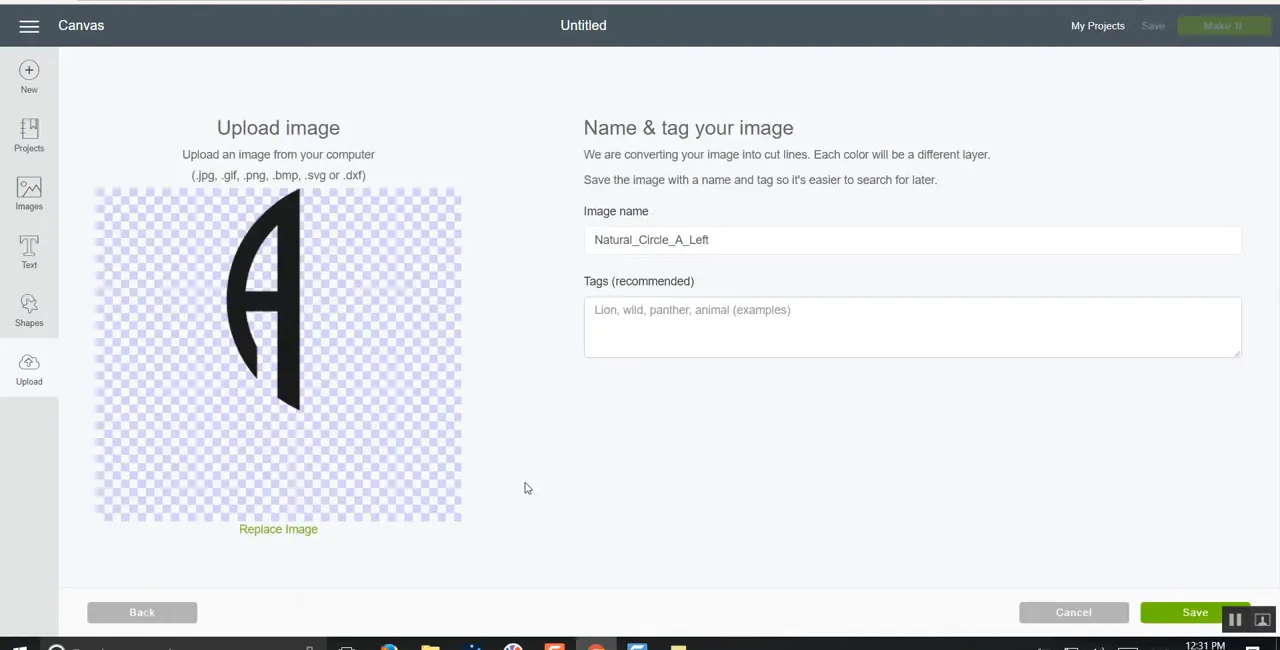
- Open Design Space and start a new project.
- Click Upload in the left-hand toolbar, then Upload Image.
- Click Browse, open the SVG folder from Step 2 and select the first letter you need.
- SVG files skip the clean-up screens and go straight to the save screen. Name the file and add a tag such as the font name (for example "Chevron Block") so you can search for all its letters later. Click Upload.
- Repeat for every letter in your word. You only upload each letter once. After that it is waiting in your uploads for any future project.
- In your recent uploads, select all the letters you need and click Add to Canvas.
Step 4: Arrange the Letters into a Word
The letters land on the canvas stacked or scattered. Drag them into order, then:
- Size them together. Select all the letters and resize as a group so they stay in proportion. Don't resize letters one at a time.
- Line them up. With all the letters selected, use Align > Align Bottom (or Align Top for monograms), then Distribute Horizontally for even spacing.
- Block letters: select all and click Attach. Attach keeps the letters in exactly this position on the cutting mat.
- Script letters that touch: overlap each letter slightly with the next, select all and click Weld. Weld merges the letters into one shape so the word cuts as a single piece with no cut lines through the joins.
Use Group only to move things around while designing. Grouped letters do not keep their position on the mat, so always Attach or Weld before you click Make It.
How to Build a 3-Letter Monogram
Monogram fonts such as our Natural Circle Round Cuttable Font come with three sets of letters: left, center and right. The file names tell you which is which (for example Left_A, Ctr_A and Right_A). The center letter is usually larger, and the outer letters are shaped to fit against it.
- Upload the left letter for the first initial, the center letter for the last-name initial, and the right letter for the middle initial.
- Add all three to the canvas, select them and choose Align > Center Vertically.
- Nudge the outer letters until they sit snugly against the center letter. Zoom in to check the gaps.
- Select all three and click Weld so the monogram cuts as one piece.
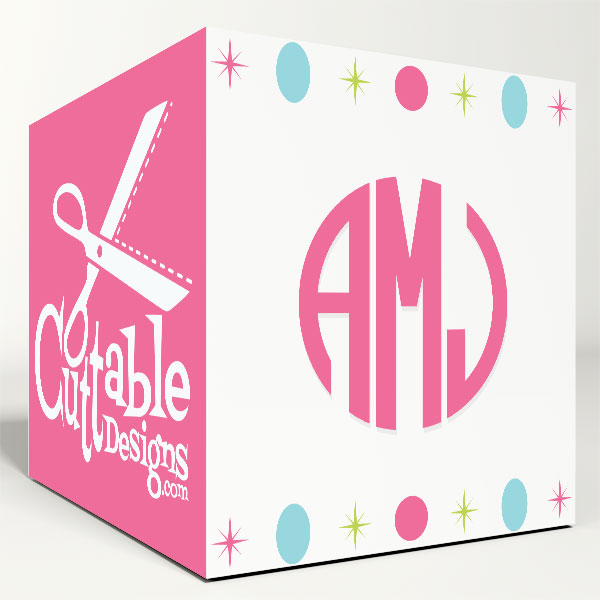
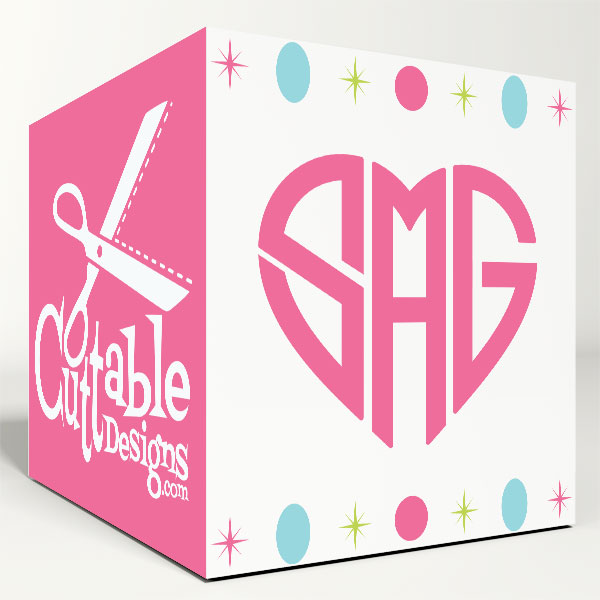
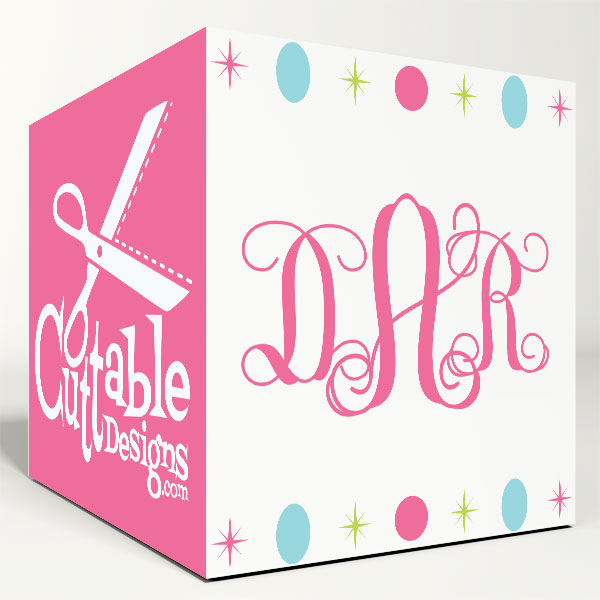
Want to put the monogram inside a wreath or frame? Follow our tutorial on how to put a monogram in a frame in Cricut Design Space. For heart-shaped monograms, see how to combine heart monogram frames and fonts.
How to Use Apex TrueType Fonts in Design Space
Our TrueType fonts work like any font on your computer. Install them once and they appear in Design Space's text tool.
- Unzip the download as in Step 2.
- Install the font file (.ttf or .otf):
- Windows: right-click the font file and choose Install (or Install for all users).
- Mac: double-click the font file, then click Install Font in Font Book.
- Close Design Space completely and open it again. Design Space only loads new fonts when it starts, which is the most common reason a newly installed font "doesn't show up."
- Click Text, open the font list, filter to System fonts and search for the font name.
- Type your text. Many monogram TrueType fonts use different keys for left, center and right letters. Check the character map included with the font.
Popular TrueType picks: Natural Circle Monogram TrueType Font, Heart Monogram TrueType Font and Circle Script TrueType Font.
Fonts installed on a computer do not carry over to the Design Space app on an iPhone or iPad. On mobile devices, use the SVG letter files instead.
Troubleshooting
- "I can't find the file to upload." You are probably looking inside the ZIP file. Unzip it first and browse to the SVG folder.
- The letters cut as separate pieces. You attached instead of welding. For script fonts, overlap the letters and Weld.
- The letters moved on the mat. They were grouped, not attached. Select them and click Attach.
- Thin parts tear when cutting vinyl. The letters are too small. Make the word larger, or pick a bolder font for small projects.
- A TrueType font doesn't appear. Restart Design Space, and check that you installed the .ttf or .otf file itself and not the ZIP.
Using a Silhouette instead? See our guide on working with purchased cuttable files in Silhouette Studio.
FAQ
Can I upload fonts to Cricut Design Space?
Not directly as fonts. Design Space reads fonts installed on your computer (TrueType or OpenType), so you install the font in your operating system and then restart Design Space. SVG letter fonts are uploaded as images instead.
Do I need Cricut Access to use Apex fonts?
No. Uploaded SVG files and fonts installed on your computer are free to use in Design Space. Cricut Access is only needed for Cricut's own font and image library.
Which file should I use for Cricut: SVG, DXF or PNG?
Use SVG. It keeps clean cut lines and separate layers. PNG is a flat image meant for print-then-cut or previews.
Can I use the same files on iPad?
Yes. Save the ZIP to the Files app, tap it to unzip, then upload the SVG letters from Files inside the Design Space app.