


Cricut Not Cutting Correctly? 10 Fixes for SVG Cut Files

Cricut not cutting correctly? The cause is almost always one of two things: something in the file or canvas (hidden layers, duplicate paths, letters not welded, wrong size) or something in the setup (material setting, blade, mat, mirror). The quickest fix is to work out which side the problem is on before you change anything. Use the table below to diagnose it, then jump to the matching fix.
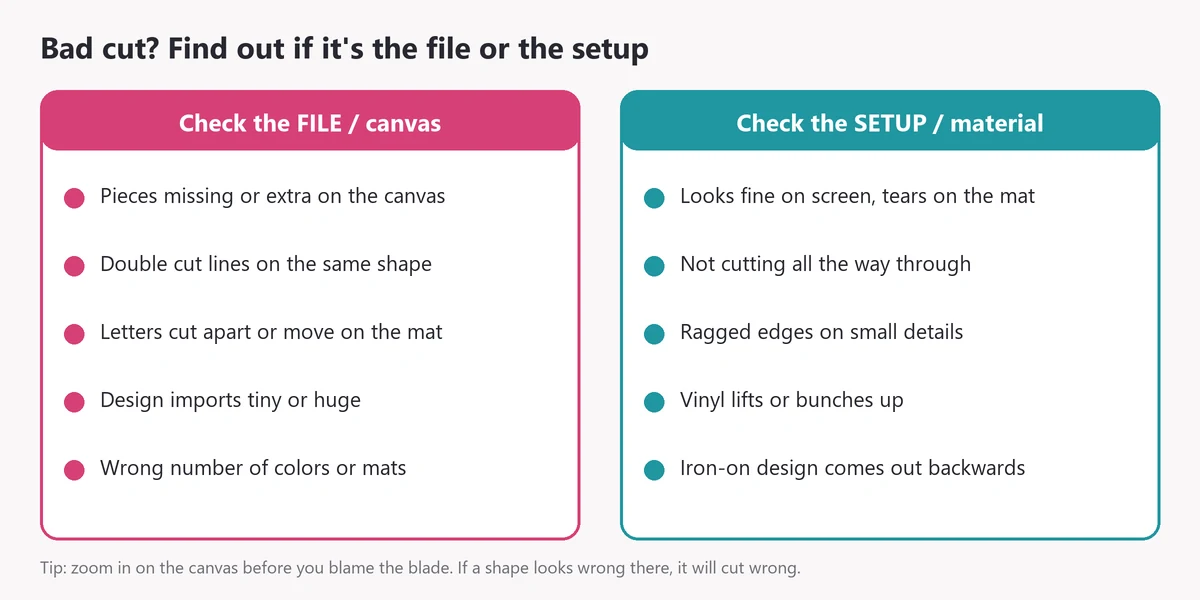
Quick Diagnosis: Is It the SVG or the Cutting Setup?
| Symptom | Most likely cause | First test | Fix |
|---|---|---|---|
| Upload fails or shows "unsupported file" | Wrong file selected | Is the file name ending .svg? | #1 |
| Same line cut twice, or a shape cut out of a shape | Duplicate paths | Ungroup and drag pieces apart | #2 |
| Letters cut apart or shift on the mat | Grouped instead of welded or attached | Check the mat preview | #3, #10 |
| Small pieces tear or vanish | Design too small for its detail | Cut the design bigger on a scrap | #4 |
| Design cuts the wrong size | Size changed on import | Read the W and H boxes | #5 |
| Extra or missing pieces on the mat | Hidden, open or overlapping paths | Open the Layers panel | #6 |
| Not cutting all the way through | Material setting or pressure | Cut a small test shape | #7 |
| Ragged or torn edges | Dull or dirty blade, or worn mat | Try a fresh mat and clean blade | #8 |
| Iron-on text comes out backwards | Mirror setting | Check the mat screen | #9 |
10 Common SVG Cutting Problems and How to Fix Them
1. You Uploaded the ZIP or the Wrong File Type
Design Space can't read a ZIP, and if you pick the PNG preview instead of the SVG you get a single flat image with a traced outline. Unzip the download, open the folder and select the file ending in .svg. Our guide on how to upload SVG files to Cricut Design Space shows each step. Cricut also limits uploaded SVGs to 5,000 paths, so an extremely detailed design may need to be uploaded in parts.
2. Duplicate Paths Create Double Cuts
If two identical shapes sit exactly on top of each other, the machine cuts the line twice. On thin vinyl or paper that can tear the material. It also happens when a design has an outline layer and a fill layer of the same shape. To check, ungroup the design and drag pieces aside. If an identical copy is underneath, delete it or hide it.
3. Layers Are Grouped Instead of Attached or Welded
Group only keeps layers together on the canvas. When you click Make It, Design Space rearranges grouped pieces on the mat to save material, so a word can arrive as scattered letters. Use Attach to keep pieces in place as they are on screen, or Weld to merge overlapping pieces into one shape. Our tutorial on putting a monogram in a frame explains when to use each.
4. Tiny Details Are Too Small for the Chosen Size
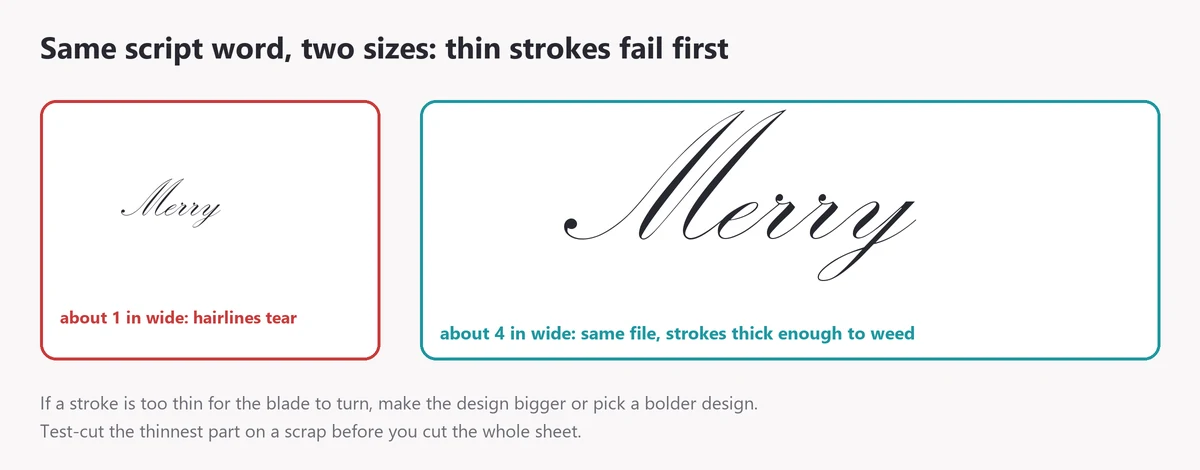
Every design has a smallest size it can be cut at. Thin script, lacy snowflakes and small cut-outs tear or disappear when shrunk. Make the design bigger, choose a bolder design for small blanks, or use Contour to hide the tiniest interior cuts. Always test the thinnest part on a scrap first.
5. The Imported Design Size Changed
SVGs don't always import at the size the designer intended. Before you cut, read the width and height in the Size box and compare them with your blank. Resize with the lock closed so the proportions stay the same. If a layered design has to line up, resize all layers together, not one at a time.
6. Hidden, Open or Overlapping Paths
- Hidden layers (eye icon off) don't cut. If something is missing, check the Layers panel.
- Open paths (lines that don't close into a shape) can cut as a single slit or be ignored.
- Overlapping shapes that should be one piece will cut as separate pieces unless you Weld them.
- Wrong operation type: a layer set to Draw or Print won't cut. Set it to Basic Cut.
7. Cut Settings Don't Match the Material
This is the number one reason a Cricut doesn't cut all the way through. On the mat screen, select the exact material you loaded, not a near match. Then:
- Set the pressure to More if the cut is almost through.
- Use a heavier setting or a multi-pass setting for thick cardstock and glitter cardstock.
- Make sure the material is the side up the machine expects (iron-on vinyl shiny side down, adhesive vinyl colored side up).
8. Blade or Mat Condition
A dull blade drags instead of slicing, which causes ragged edges and torn corners. Paper fibers and vinyl bits stuck in the blade housing do the same. Remove the blade, clean out the housing and try again. A mat that has lost its grip lets the material shift mid-cut, so swap to a fresh mat or use the grip that matches your material (LightGrip for thin paper, StandardGrip for vinyl and cardstock).
9. Mirror Settings Are Wrong
Iron-on (heat transfer) vinyl must be mirrored because it's cut from the back. Adhesive vinyl must not be mirrored. If the text on your shirt reads backwards, Mirror was off. If your decal reads backwards, Mirror was on.
10. Font Letters and Spacing Weren't Prepared
SVG fonts come as one file per letter. If the letters aren't welded or attached, they cut as separate pieces in random places on the mat. Script letters that should join need to overlap slightly and be welded. Block letters should be aligned, spaced and attached. Our guide on using Apex fonts in Cricut Design Space covers this step by step.
Why Is My Cricut Not Cutting All the Way Through?
Work through these in order and test after each change:
- Select the exact material on the mat screen.
- Change pressure to More.
- Check that the blade is the right one for the material and is seated fully in the clamp.
- Clean the blade housing.
- Try a new blade.
- Use a mat with enough grip and press the material down firmly with a brayer or scraper.
- For thick materials, use a custom setting with more passes.
If the machine still won't cut through a material it supports, contact Cricut support. The problem may be mechanical.
Material Setup Cheat Sheet
| Material | Side facing up | Mat | Mirror? | Blade |
|---|---|---|---|---|
| Permanent or removable adhesive vinyl | Colored side up | StandardGrip | No | Fine-Point |
| Iron-on (heat transfer) vinyl | Shiny carrier side down | StandardGrip | Yes | Fine-Point |
| Light cardstock (65 lb) | Pattern side up | LightGrip or StandardGrip | No | Fine-Point |
| Heavy or glitter cardstock | Pattern side up | StandardGrip | No | Fine-Point, extra pressure or passes |
| Printable sticker paper (Print Then Cut) | Printed side up | LightGrip | No | Fine-Point |
Smart Vinyl, Smart Iron-On and Smart Paper can be cut without a mat on machines that support them. Always choose the exact material name in Design Space, since each setting has its own pressure and speed.
When the Machine Itself Needs Attention
- Update the firmware when Design Space prompts you. Some cutting issues are fixed in updates.
- Clean the rollers and the rubber wheels if the mat slips or feeds crooked.
- Check that the clamp is closed and the blade housing clicks into place.
- Restart the machine and Design Space if a cut stops halfway or the machine stops responding.
A Simple Test-Cut Workflow Before Wasting Vinyl
- Duplicate the smallest or thinnest part of your design.
- Delete everything else from a copy of the project.
- Cut it on a scrap of the same material with your planned settings.
- Weed it. If it lifts cleanly, cut the full design. If not, adjust one thing at a time.
- Write down the setting that worked, so you don't have to test that material again.
When to Edit the SVG vs When to Change Machine Settings
If the design looks wrong on the canvas or the mat preview (missing pieces, extra lines, letters scattered), fix the file: ungroup, unhide, weld, attach or resize. If it looks right on screen but the physical cut is bad (tearing, not cutting through, ragged edges), fix the setup: material, pressure, blade or mat. Changing both at once makes it hard to know what worked.
Cricut Cutting FAQ
Why is my Cricut cutting a shape twice?
Usually because there are two identical paths in the design, stacked on top of each other. Ungroup the design and delete the duplicate.
Why do tiny pieces disappear or tear?
They're too small for the blade to cut cleanly at that size. Make the design larger or choose a bolder design.
Why does the mat preview look different from my canvas?
Design Space separates each color onto its own mat and rearranges unattached pieces to save material. Attach anything that must keep its position.
Can a bad file cause cutting problems?
Yes, but check the setup first: most cutting problems come from material settings, blades and mats. If a file still cuts strangely after you've checked hidden layers and duplicates, contact the shop where you bought it. Apex customers can reach us through our FAQ and contact page.
Try a New Cut File, or Ask Us for Help
Once your settings are dialed in, you're ready for the next project. Looking for something clean and simple to test with? Try the Simple Snowflake Svg, browse SVG cut files by theme, or start with one of our easy Cricut projects for beginners. Unsure about file types? Read SVG vs PNG for Cricut.