


How to Use SVG and DXF Cut Files in Silhouette Studio (Monogram Fonts)

Our cuttable fonts and designs work in Silhouette Studio as well as Cricut Design Space. This tutorial shows how to open purchased SVG or DXF files, put a three-letter monogram together and send it to cut. The original walkthrough was written for us by Terri Johnson, and the screenshots are hers.
Basic Edition or Designer Edition: SVG vs DXF
When you unzip an Apex cuttable font, you get the same letters in several formats: SVG, DXF, EPS and PNG.
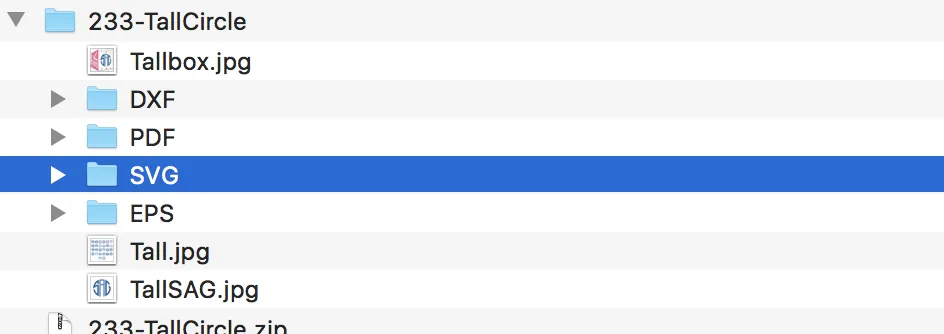
- Silhouette Studio Designer Edition (or higher) opens SVG files. Use SVG if you have it.
- Silhouette Studio Basic Edition cannot open SVG files, but it opens DXF. The steps below are the same with DXF files.
PNG files are previews and print images. EPS files are for design programs like Illustrator.
How Monogram Letter Files Are Named
Three-letter monogram fonts come with three alphabets, one for each position:
- Left letters, for example Left_A.svg
- Center letters, for example Ctr_A.svg
- Right letters, for example Right_A.svg
The side letters are shaped to lean into the center letter. For a traditional monogram, use the first-name initial on the left, the last-name initial in the center and the middle initial on the right.
Step 1: Open the Center Letter
In Silhouette Studio, choose File > Open and browse to the SVG (or DXF) folder. Open the center letter first. In our example we use J from the Tall Circle Monogram Cuttable Font.
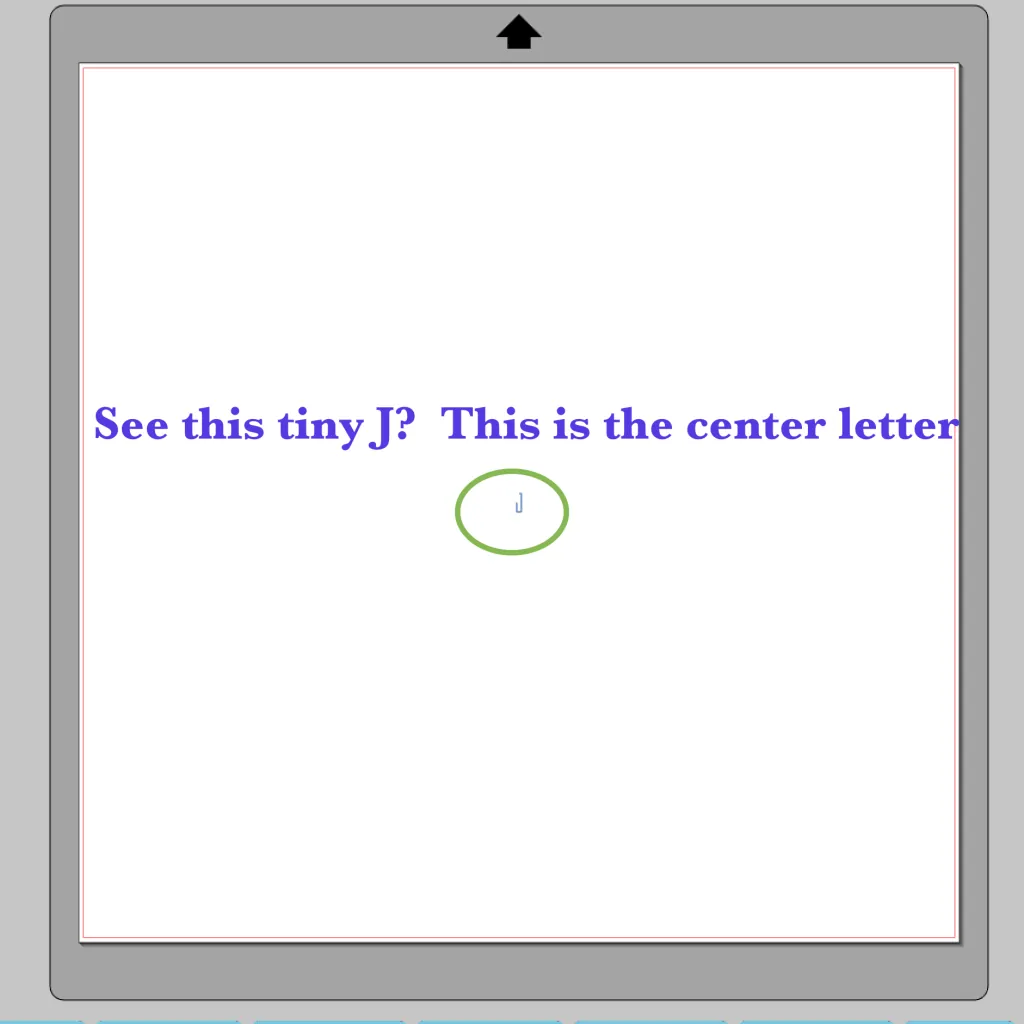
The letter opens very small. Don't resize it yet. Wait until all three letters are on the page so they keep the right proportions.
Step 2: Merge the Other Two Letters
Choose File > Merge and open the left letter, then merge the right letter the same way. Merge brings each file into the same page instead of opening a new tab. The letters land on top of each other. That's normal.
Step 3: Arrange, Align and Space
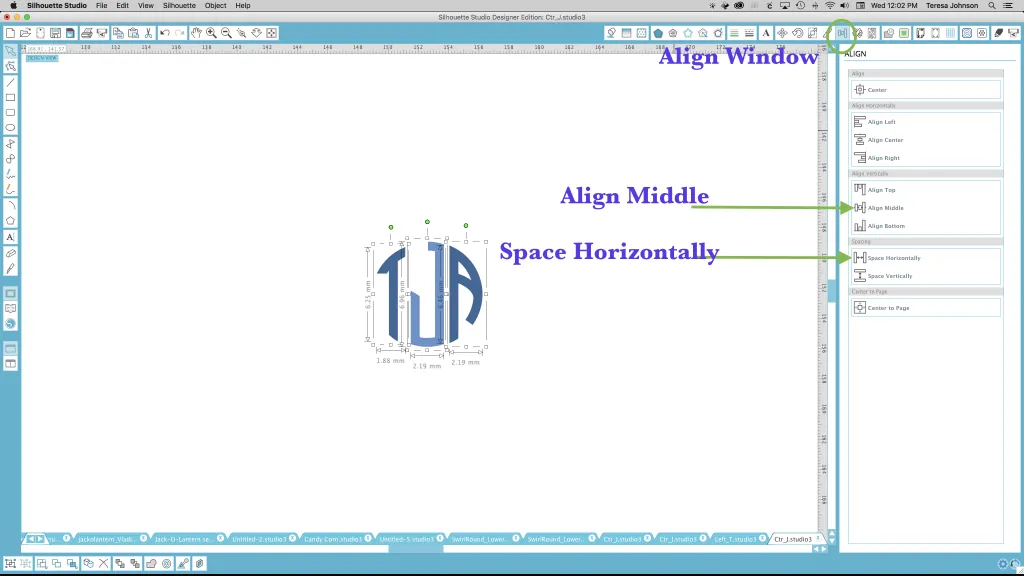
- Zoom in and drag the letters apart into left, center and right positions.
- Select all three and open the Align panel. Choose Align Middle (or Center Vertically), then Space Horizontally.
- Nudge the side letters so they sit snugly against the center letter.
- Select all three and Group them, or Weld them if the letters overlap and you want a single cut piece.
Step 4: Resize and Send to Cut
Now resize the grouped monogram to the size you want. Open the Send panel (Cut Settings in older versions), check that the letters are set to cut, choose your material and send it to your machine.
Fonts with Uppercase and Lowercase Instead of Left/Center/Right
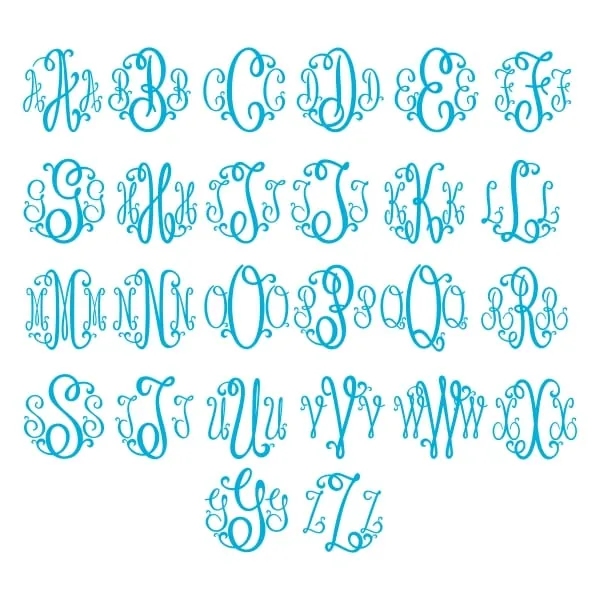
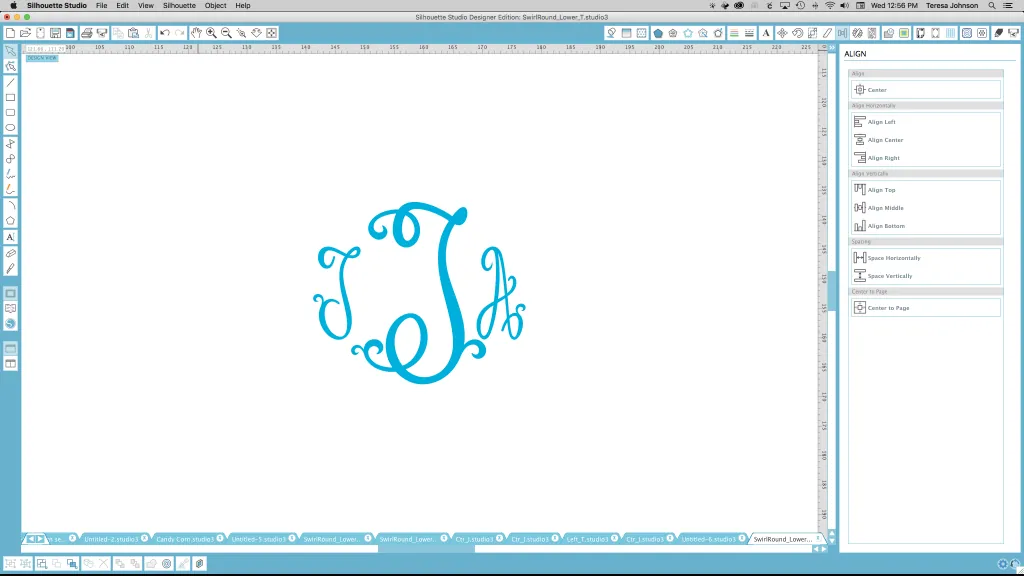
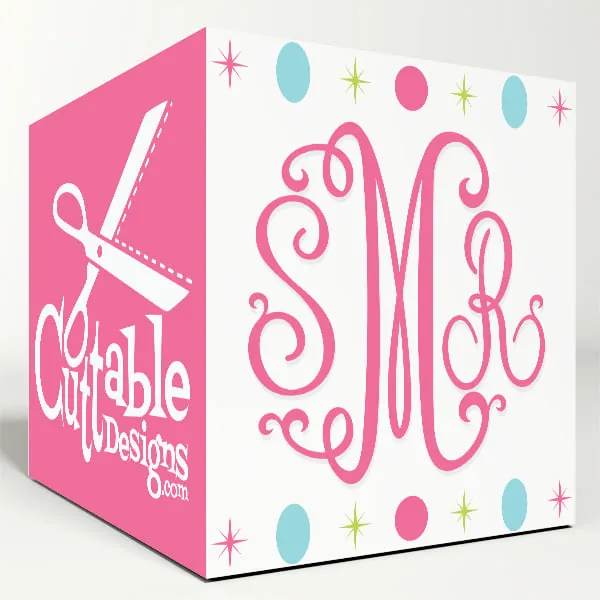
Some monogram fonts, like the Suzanne Curlz Cuttable Monogram Font, have upright letters that don't lean into each other. Instead of left, center and right files, they come in two sizes: uppercase for the large center letter and lowercase for the two smaller side letters.
So for the initials T, J and A, open lowercase t, merge uppercase J, then merge lowercase a. Arrange and align them as above. Curly letters don't always space evenly with the automatic tools, so nudge them by eye until the gaps look balanced.
Troubleshooting
- "File type not supported" when opening an SVG: you are on Basic Edition. Use the DXF file instead, or upgrade to Designer Edition.
- The letters opened in separate tabs: you used Open instead of Merge. Copy and paste the letters into one page, or start over with Merge.
- The monogram is tiny: that's normal. Resize after all the letters are grouped.
- Nothing cuts: check the Send panel and make sure the lines are set to Cut, not No Cut.
More Ideas
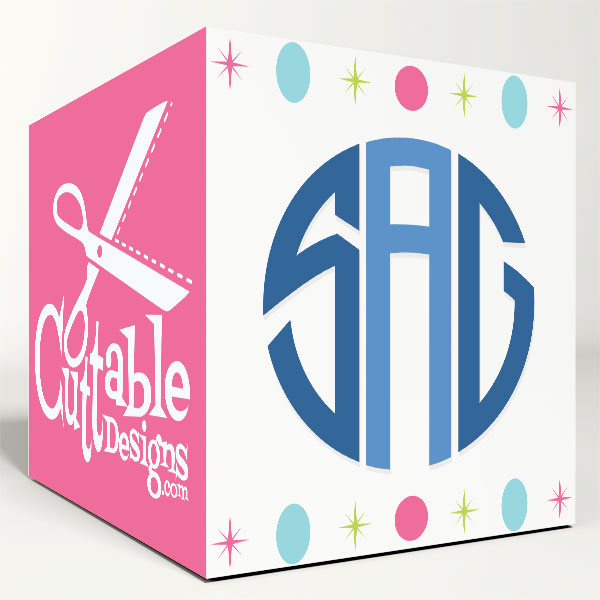
Browse all our monogram cuttable fonts. Using a Cricut instead? Follow our guide on how to use Apex fonts in Cricut Design Space. Need your own logo or artwork as a cut file? Try our custom cuttable digitizing service.