


How to Put a Monogram in a Frame in Cricut Design Space

A circle monogram inside a wreath or frame is one of the most popular Cricut projects for tumblers, doormats, pillows and shirts. With Apex SVG fonts, each letter is its own SVG file, so you upload the letters and the frame, size them together and then decide whether they should cut as one piece or as separate layers.
The video shows the process with our Natural Circle Round Cuttable Font and a holly wreath frame. The steps below follow the same flow in the current version of Cricut Design Space.
Video courtesy of Narelle Darley. It was recorded in an earlier version of Design Space, so some buttons look different today. The written steps were checked against Design Space in September 2026.
Why Apex Monogram Letters Come as Left, Center and Right Files
A classic three-letter circle monogram uses a different shape for each position: the outer letters are curved to follow the circle and the center letter is taller. That is why circle monogram SVG fonts such as Natural Circle include a left, center and right version of every letter. For a monogram with the initials A, B and C, you upload A-left, B-center and C-right.
Step 1: Upload the SVG Letters and the Frame
- Unzip your Apex download and open the SVG folder.
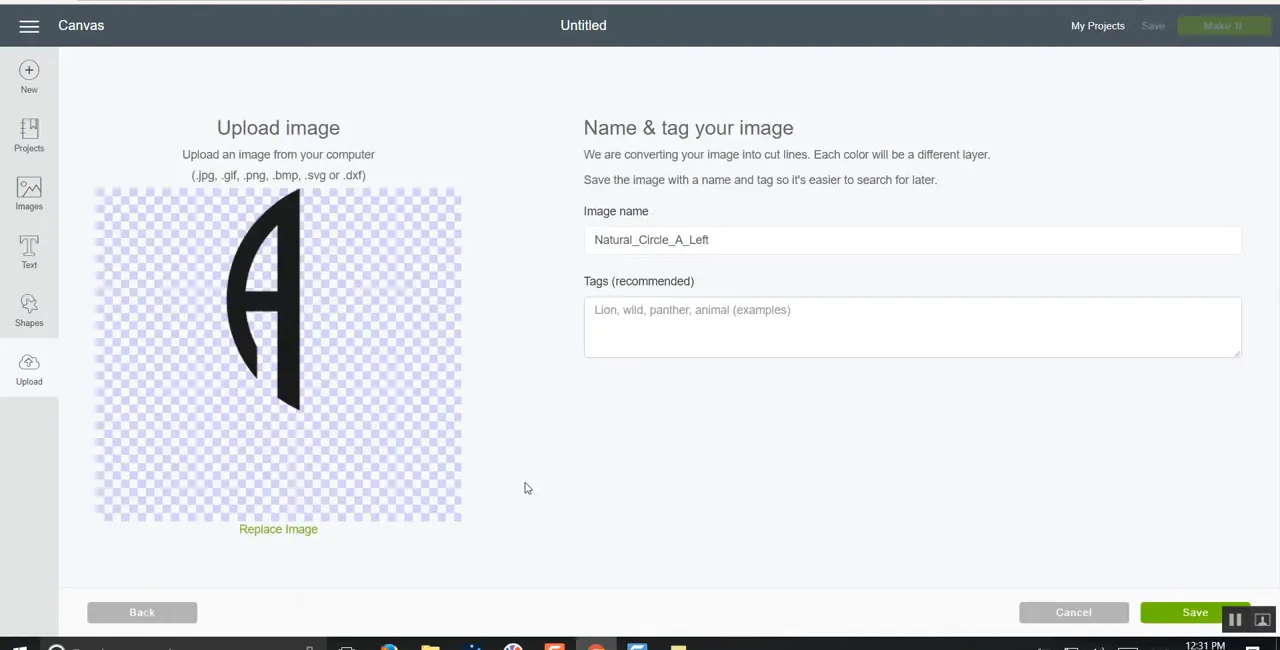
- In Design Space, select Upload in the left panel, then Upload Image.
- Click Browse (or drag the file in), choose the first letter's .svg file, name it and click Upload.
- Repeat for the other two letters and for the frame.
- Select the four images in your uploads and click Add to Canvas.
Layered SVGs such as a two-color wreath arrive as a group. Ungroup them if you want to move or recolor the layers separately.
Step 2: Line Up and Size the Monogram
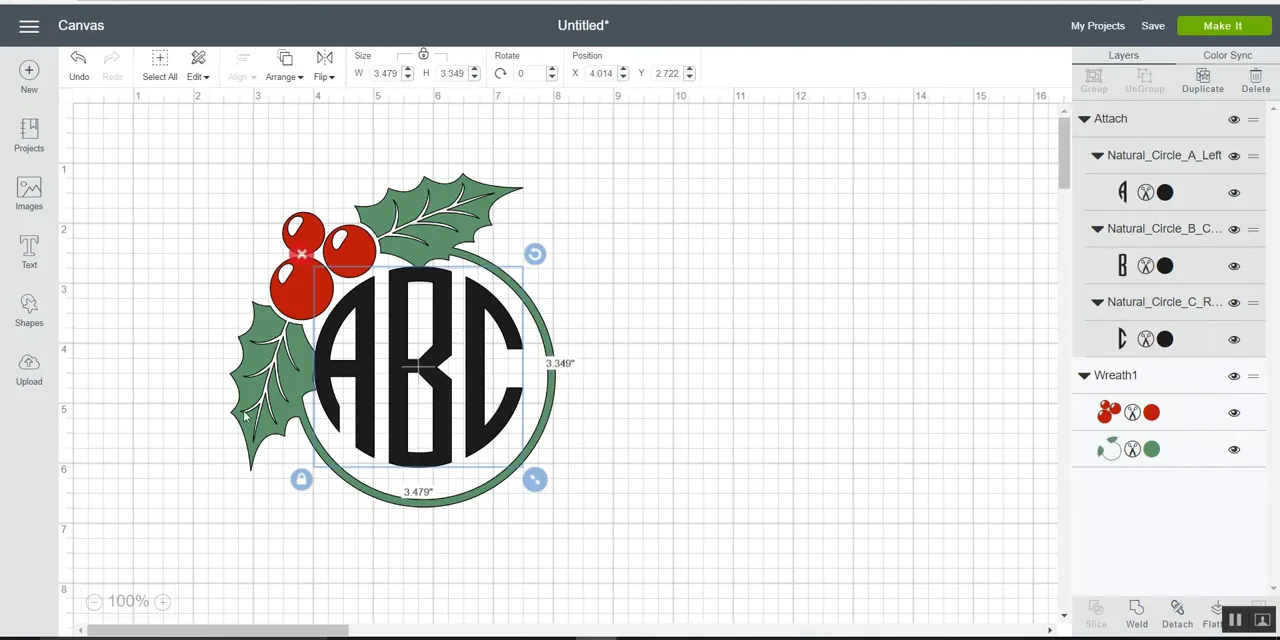
- Place the three letters side by side in the right order.
- Select them and use Align > Center Vertically so they share the same middle line.
- With the letters still selected, Group them so they resize together.
- Drag the corner handle to size the monogram so it fits inside the frame opening, leaving a small even gap or letting the letters touch the ring, depending on the look you want.
- Select the monogram and the frame and use Align > Center.
Step 3: Choose Weld, Attach or Flatten
This choice decides how the design cuts. Cricut moved these tools several times in 2025 and 2026, so look for them in the toolbar or menu that appears when you select the layers. On the mobile app they are under Actions.
| Tool | What it does | Use it when |
|---|---|---|
| Weld (in the Combine menu) | Merges overlapping shapes into one layer with a single outer cut line. Cannot be undone once saved. | The letters touch the frame and you want one piece of vinyl, such as a single-color decal. |
| Attach | Keeps every cut line but holds the pieces in the same position on the mat. | Letters and frame are separate pieces, or the frame is a different color. |
| Group | Moves and resizes layers together only. It does not change how they cut. | You are still arranging the design. |
| Flatten | Turns selected layers into one printable image. | Print Then Cut projects such as stickers and tags. |
For a single-color monogram in a wreath, overlap the letters slightly with the ring, select everything and choose Combine > Weld. For a two-color design, keep the letters and frame as separate layers and use Attach on each color.
Step 4: Hide Small Cut Lines with Contour (Optional)
Some frames have tiny interior pieces you may not want to weed. Select a single layer, open Contour and click the cut lines you want to hide. Click them again to bring them back.
Step 5: Make It
Click Make It. If you are cutting iron-on vinyl for a shirt, remember to turn on Mirror on the mat screen. Adhesive vinyl for tumblers and signs is cut without mirroring.
Monogram Fonts and Frames to Try
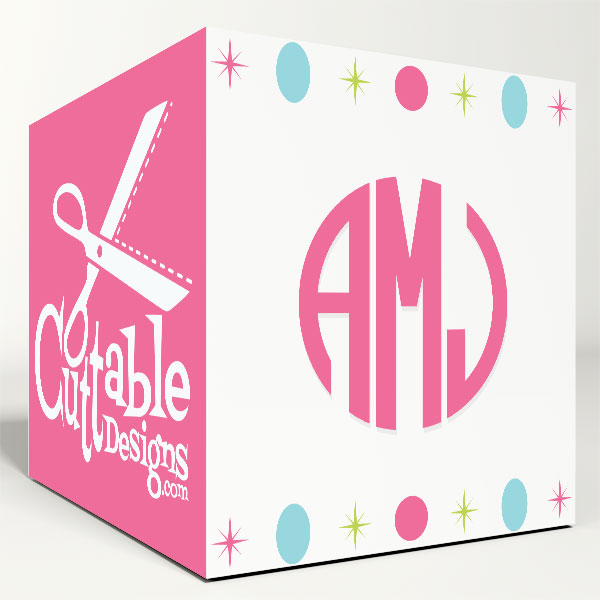
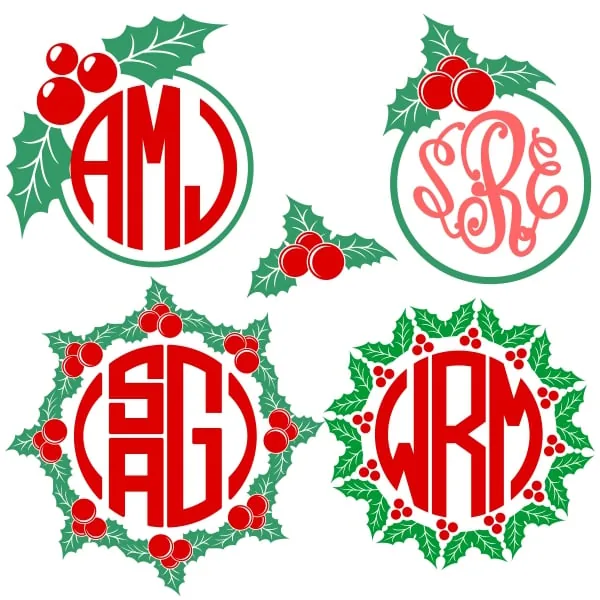
- Natural Circle Round Cuttable Font, the font in the video, with left, center and right letters.
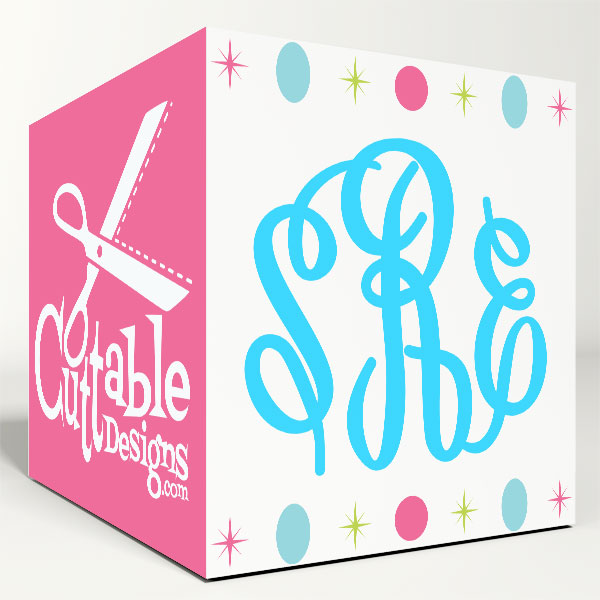
- Circle Curlz Monogram Cuttable Fonts and Curlz Monogram Cuttable Font for a softer, curly look.
- Wreath Christmas Cuttable Frame, Christmas Holly Berries Cuttable Design and Holly Cuttable Design for holiday wreaths.
Find more in our SVG monogram fonts and SVG frames. New to Apex SVG fonts? Start with how to use Apex SVG fonts in Cricut Design Space. Use a Silhouette instead? See working with Apex cut files in Silhouette Studio.
Cricut Monogram FAQ
What is the difference between weld and attach in Cricut?
Weld merges shapes into one layer and removes the cut lines where they overlap. Attach keeps every shape and cut line but holds them in place on the mat.
Why does my monogram cut into separate letters?
The layers were grouped or attached, not welded. Overlap the letters with each other or the frame, select them and use Combine > Weld.
Can I use Apex SVG fonts on the Cricut mobile app?
Yes. Upload the SVG files from your phone or tablet. The editing tools are under the Actions menu on mobile. DXF files are not supported on iOS or Android, so use the SVG files.