


15 Easy Cricut Projects for Beginners (Using SVG Files)

The best first Cricut project is a single-color vinyl decal with large, simple shapes: a name on a water bottle or a notebook. It teaches the three skills every other project builds on, uploading an SVG, cutting and weeding, in one short session. Below are 15 easy Cricut projects for beginners in roughly the order we'd make them, each with the materials you need, the skill it teaches and an SVG file you can start with.
What Beginners Need to Start Working with SVG Files
- A cutting machine. Any current Cricut (Joy, Explore or Maker) or Silhouette works for these projects. Check your machine's material list before buying supplies.
- Design software. Cricut Design Space or Silhouette Studio, both free to download.
- SVG files. Apex designs download as a ZIP with SVG, DXF, EPS and PNG files. Unzip it and upload the SVG. See how to upload SVG files to Cricut Design Space.
- A StandardGrip mat (unless you use matless Smart materials), a weeding tool and a scraper.
- Materials: a few sheets of permanent adhesive vinyl, transfer tape, cardstock and one sheet of iron-on vinyl.
15 Easy Cricut SVG Projects to Start With
1. Simple Name Decal
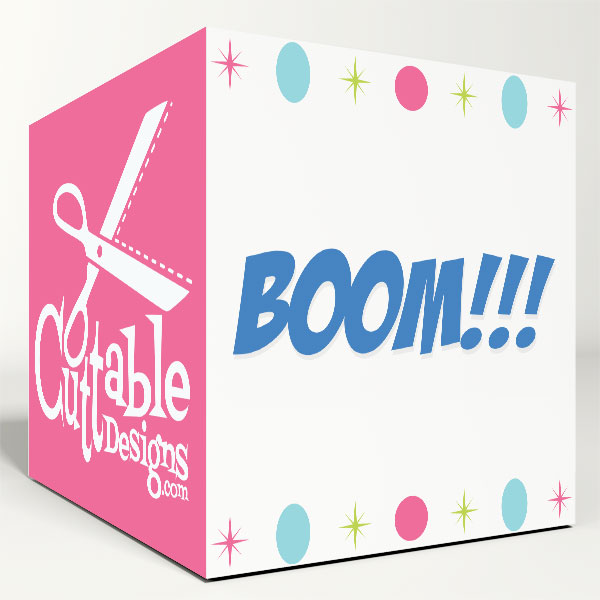
Spell a name with a bold block font such as Boom Block Cuttable Font, Attach the letters and cut them from permanent vinyl for a door, a storage box or a lunch box. Skills: uploading, Attach, weeding, transfer tape.
2. Single Initial Sticker
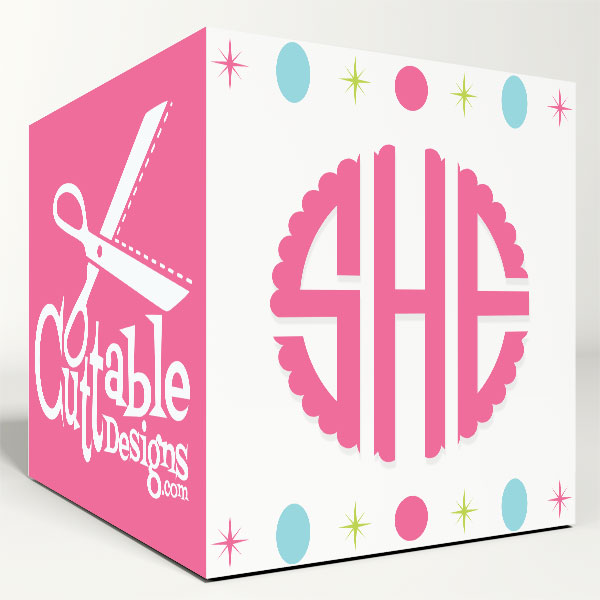
Use one letter from the Scallop Circle Svg Monogram Cuttable Font and cut it about 2 inches wide for a laptop or phone case. Skills: sizing, cutting small pieces cleanly.
3. Weekday Labels for Bins or a Planner
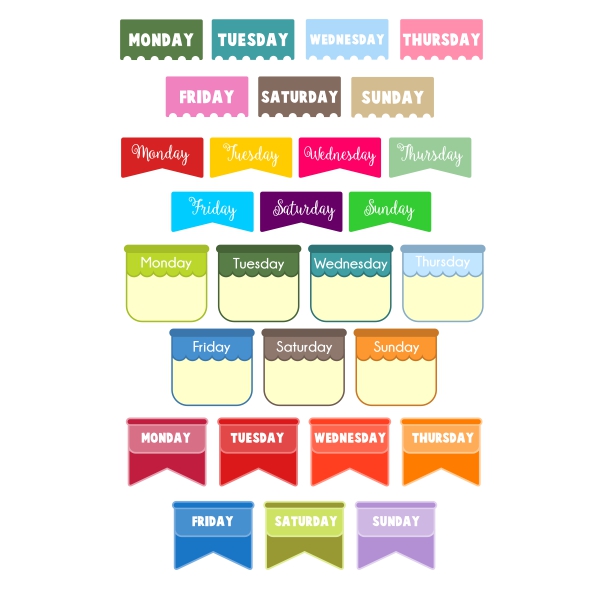
The Daily Labels Cuttable Design gives you banner and tab labels for every day of the week. Cut them from cardstock for a weekly planner or from vinyl for kids' clothing bins. Skills: cutting several pieces at once.
4. Gift Tags
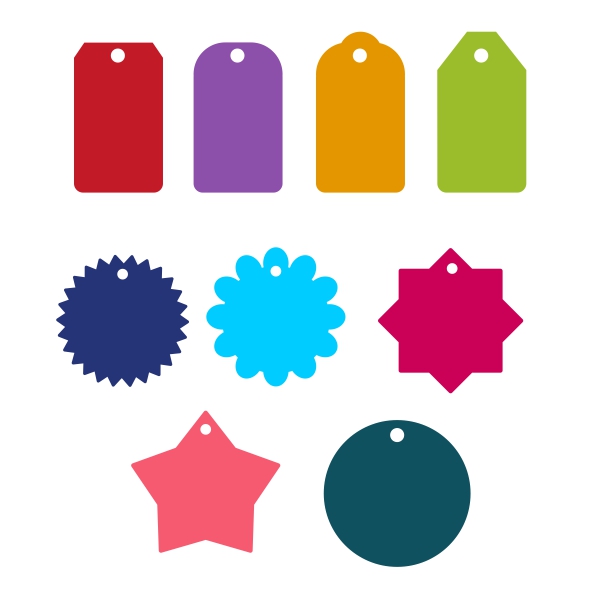
The Tags Pack Cuttable Design includes rectangle, scalloped, star and round tags with a hole for string. Cardstock is cheap, so it's a stress-free way to learn your machine. Skills: cardstock settings, mat handling.
5. Greeting Card Cut-Out
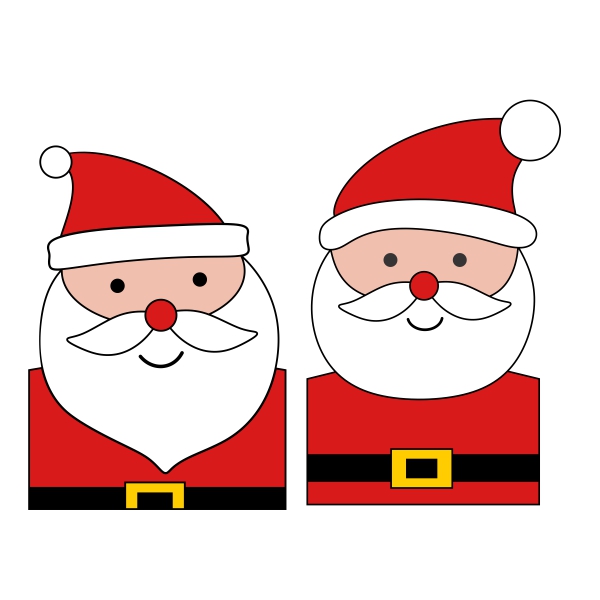
Cut the Santa Claus Card Cuttable Design from red, white and skin-tone cardstock and glue the layers onto a folded card. Skills: layering cardstock, glue placement.
6. Notebook or Journal Decal
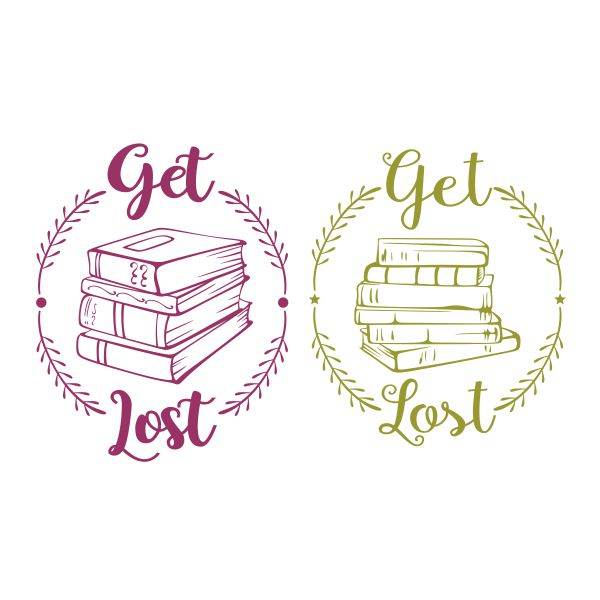
A design like Get Lost in Books Cuttable Design looks great on a plain notebook cover. Use permanent vinyl and smooth it on with a scraper. Skills: applying vinyl to a flat surface.
7. Water Bottle Monogram
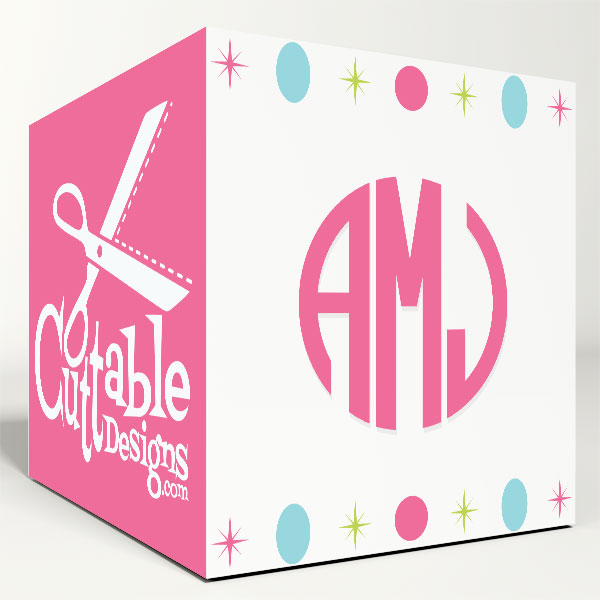
A circle monogram from the Natural Circle Round Cuttable Font at about 2.5 inches fits most bottles. It's a gentle introduction to curved surfaces. Skills: three-letter monograms, applying to a curve.
8. Tote Bag Monogram
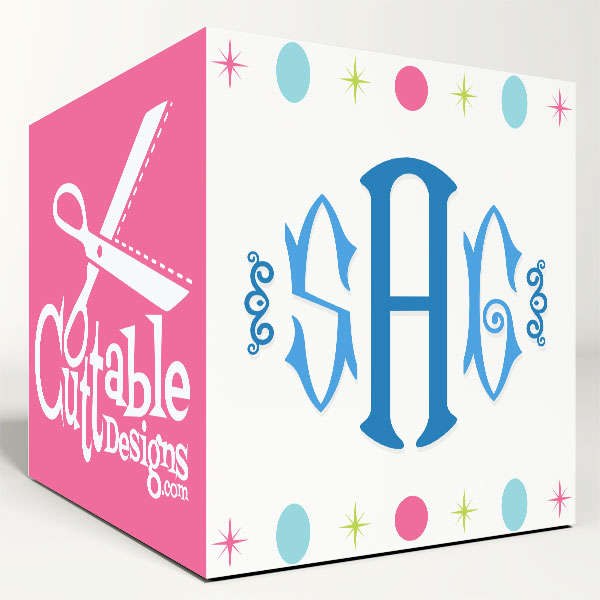
Your first iron-on project. Cut a monogram from the Hampton Monogram Cuttable Font in iron-on vinyl, mirror it and press it on a canvas tote. Skills: iron-on, mirroring, pressing.
9. Simple T-Shirt Graphic
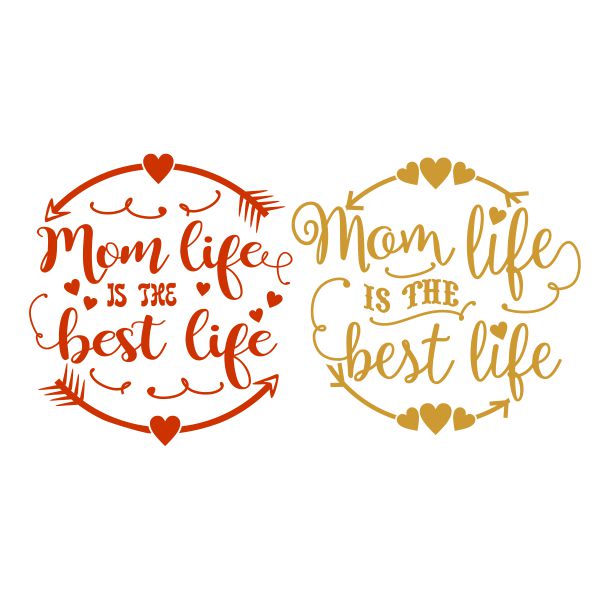
Once the tote works, try a shirt. Mom Life is the Best Life Cuttable Design is a one-color word design that presses well on a cotton tee. Find 20 more ideas in our Cricut shirt ideas. Skills: shirt placement, larger iron-on designs.
10. Party Favor Labels
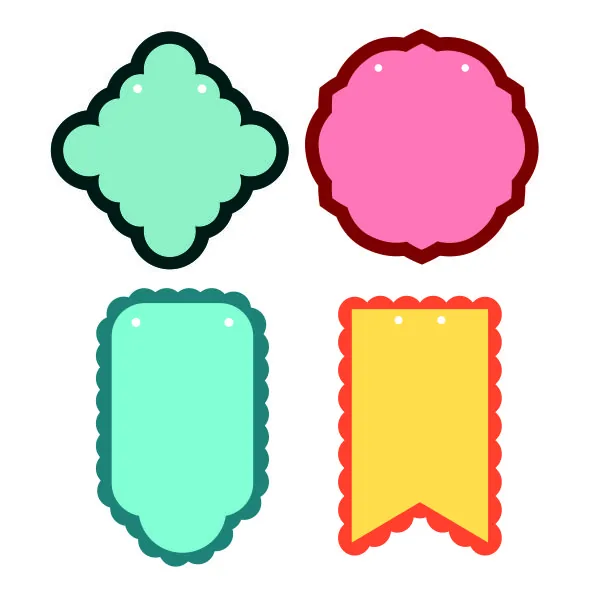
The Layered Banner Cuttable Design has two-part labels: a colored base and a contrasting border. Write names on them for party favors or jars. Skills: two-layer cardstock, alignment.
11. Planner Stickers with Print Then Cut
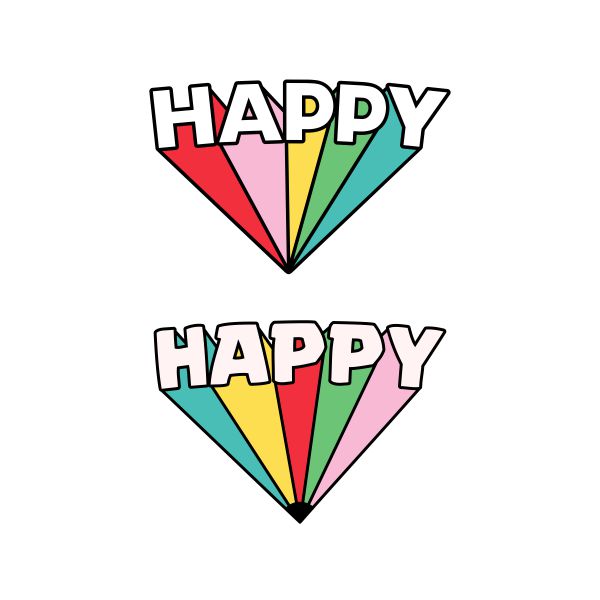
Use the PNG file from a design such as Happy Sticker Cuttable Design with Print Then Cut: your printer adds the colors and the Cricut cuts around them. Print Then Cut needs a home printer and a machine that supports it (Explore and Maker models do; the original Cricut Joy doesn't). Learn more in SVG vs PNG for Cricut. Skills: Print Then Cut, printable sticker paper.
12. Acrylic Keychain Decal
A two-letter monogram from the Isla Two-Letter Scallop Circle Monogram Cuttable Font at about 1.5 inches fits an acrylic keychain blank. The Cricut cuts the vinyl decal; the keychain is bought as a blank. Skills: tiny decals, careful transfer.
13. Seasonal Window Silhouette
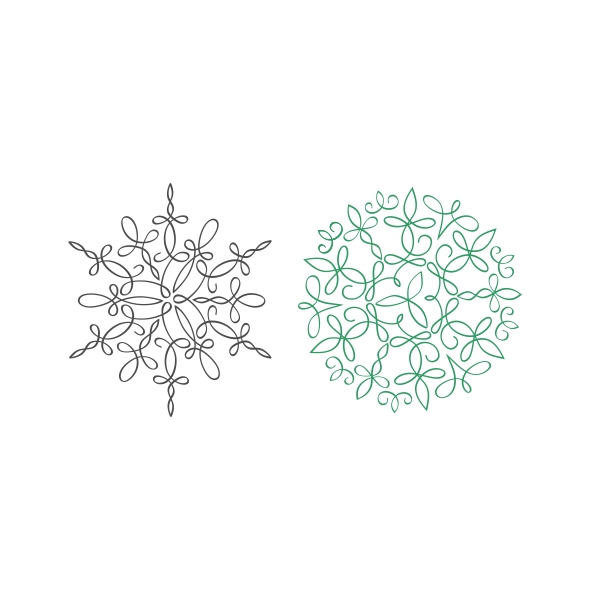
Cut the Simple Snowflake Svg from white cardstock or removable vinyl and stick it on a window for winter. Skills: removable vinyl, detailed cuts.
14. Holiday Ornament Decal
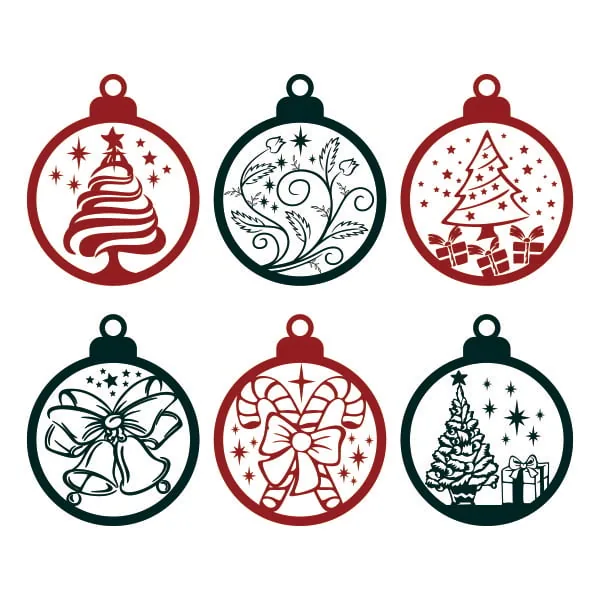
The Christmas Ornament Svg works as a vinyl decal on a clear acrylic ornament or as a cardstock ornament. See 15 more ideas in our Christmas ornament SVG guide. Skills: small decals on rigid blanks.
15. Layered Paper Decoration

When you're comfortable, try a multi-layer project like the Fairy Silhouette 3D Multi-Layer Cuttable Design. Each layer is cut from a different color and stacked with foam squares for depth. Skills: multi-layer cutting, assembling in order.
Which Projects Should You Make First?
| Level | Projects | What you learn | Material cost |
|---|---|---|---|
| Start here | Gift tags (4), name decal (1), initial sticker (2) | Uploading, cutting, weeding, transfer tape | Lowest |
| Next | Labels (3), card (5), notebook (6), window (13) | Several pieces, layering, removable vinyl | Low |
| Then | Water bottle (7), keychain (12), ornament (14) | Curved surfaces and small decals | Low to medium (blanks) |
| Iron-on | Tote (8), shirt (9) | Mirroring, heat and pressure | Medium (blanks) |
| Stretch | Favor labels (10), stickers (11), layered decoration (15) | Alignment, Print Then Cut, multi-layer builds | Medium |
Vinyl, Iron-On or Cardstock: What to Buy First
| Material | Use it for | Beginner notes |
|---|---|---|
| Cardstock | Tags, cards, labels, paper decorations | Cheapest way to practice. Mistakes cost almost nothing. |
| Permanent adhesive vinyl | Bottles, mugs, notebooks, ornaments, signs | Needs transfer tape. Buy a small sampler pack of colors. |
| Removable adhesive vinyl | Windows, walls, seasonal decor | Peels off cleanly later. Good for temporary projects. |
| Iron-on (heat transfer) vinyl | Shirts, totes, pillow covers | Must be mirrored. Start with a cotton tote before a shirt. |
| Printable sticker paper | Planner stickers, labels | Needs a printer and a Print Then Cut capable machine. |
Weeding Tips for Your First Projects
- Cut a weeding box. Add a rectangle around the design so you can peel the excess vinyl off in one sheet.
- Use light. Hold the sheet up to a window or a light pad to see the cut lines on dark vinyl.
- Start from a corner and peel the excess away at a low angle, watching for small pieces that try to lift.
- Weed small pieces first, like the centers of letters (the holes in a, e, o), while the rest still holds the vinyl flat.
Transfer Tape Basics
Transfer tape moves a weeded adhesive vinyl design onto your surface in one piece. Cut a piece a little bigger than the design, lay it on top and burnish it with a scraper. Peel the vinyl backing away at a sharp angle, place the design, burnish again and peel the tape off slowly. If a letter stays on the tape, lay it back down and burnish that spot. Iron-on vinyl doesn't need transfer tape: its clear carrier sheet does the same job.
How to Complete Your First SVG Project
- Choose a simple one-color design.
- Unzip the download and find the .svg file.
- Upload it to Design Space and add it to the canvas.
- Size it to fit your blank, with the lock closed.
- Cut: choose the right material, mirror only for iron-on.
- Weed the vinyl you don't need.
- Apply with transfer tape (adhesive vinyl) or a heat press or iron (iron-on).
6 Beginner Mistakes to Avoid
- Uploading the wrong file. Upload the .svg, not the ZIP or the PNG preview.
- Using the wrong vinyl. Adhesive vinyl for hard surfaces, iron-on for fabric.
- Cutting too small. Fine details tear at small sizes. See Cricut not cutting correctly.
- Skipping the test cut. Cut a small piece on a scrap before the whole sheet.
- Forgetting to mirror iron-on. Otherwise the text comes out backwards.
- Applying adhesive vinyl without transfer tape. Letters end up crooked and stretched.
How to Choose Beginner-Friendly SVG Designs
- Bold shapes with thick lines and few tiny pieces.
- One or two colors, so you have only one or two mats to manage.
- Clear packaging: a ZIP that includes SVG plus DXF and PNG, so it works with whatever software you use.
- A full preview on the product page so you know exactly what you're cutting.
Easy Cricut Projects FAQ
Are SVG files free?
Some are, but most quality designs are paid. Apex designs are mostly $1.99 each, with packs and full alphabets costing more. Prices are on each product page.
Do SVG files work with all Cricut machines?
SVGs work in Cricut Design Space, which runs every current Cricut cutting machine. What changes between machines is the material size and type they can cut, so check your model before choosing a large or thick project.
What project can I make with just vinyl?
A name decal, an initial sticker or a notebook decal. All you need is permanent vinyl, transfer tape and the item you're decorating.
Can I sell what I make?
With Apex designs, yes: you can sell finished items you make. You can't sell or share the files. See the FAQ.
Next Steps: Try an Apex SVG Design
Pick your first digital SVG design, then follow the step-by-step SVG upload tutorial. A simple monogram from our monogram SVG fonts or a seasonal decal from our Christmas SVG collection is a great place to start.