


How to Upload SVG Files to Cricut Design Space (Desktop and Mobile)

Here's how to upload SVG to Cricut Design Space in short: download the file, unzip it, open a new project, click Upload, then Upload Image, browse to the .svg file, save it, and add it to your canvas. SVG files skip the clean-up screens that PNG and JPG images go through, so the whole process takes about a minute. The steps below show each part in detail, on a computer and on a phone, plus fixes for the errors that stop most people.
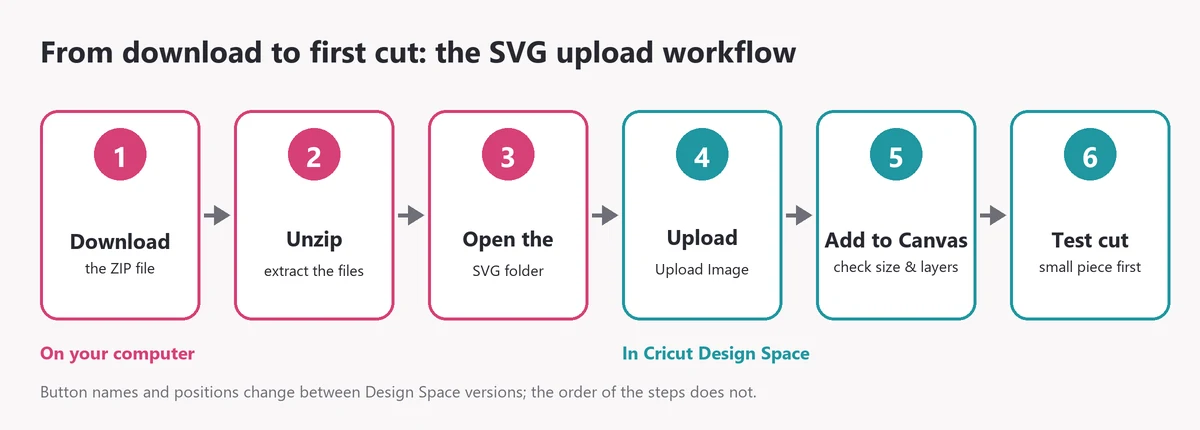
Cricut changes button names and positions in Design Space from time to time, so this guide describes what each step does. If a button has moved in your version, look for the same word nearby.
Before You Start: Find the Actual SVG File
Why Downloads Arrive as ZIP Files
Most SVG shops, Apex included, deliver designs as a ZIP file. A ZIP is a compressed folder that bundles several files into one download. Design Space can't open a ZIP, so you need to extract it first.
- Windows: right-click the ZIP, choose Extract All, then Extract.
- Mac: double-click the ZIP. A normal folder appears next to it.
- iPhone or iPad: open the Files app, find the ZIP (usually in Downloads) and tap it once.
- Android: open your Files app, tap the ZIP and choose Extract.
SVG, DXF, EPS or PNG: Which File Do You Upload?
An Apex download contains the same design in four formats. Cricut Design Space uses the SVG.
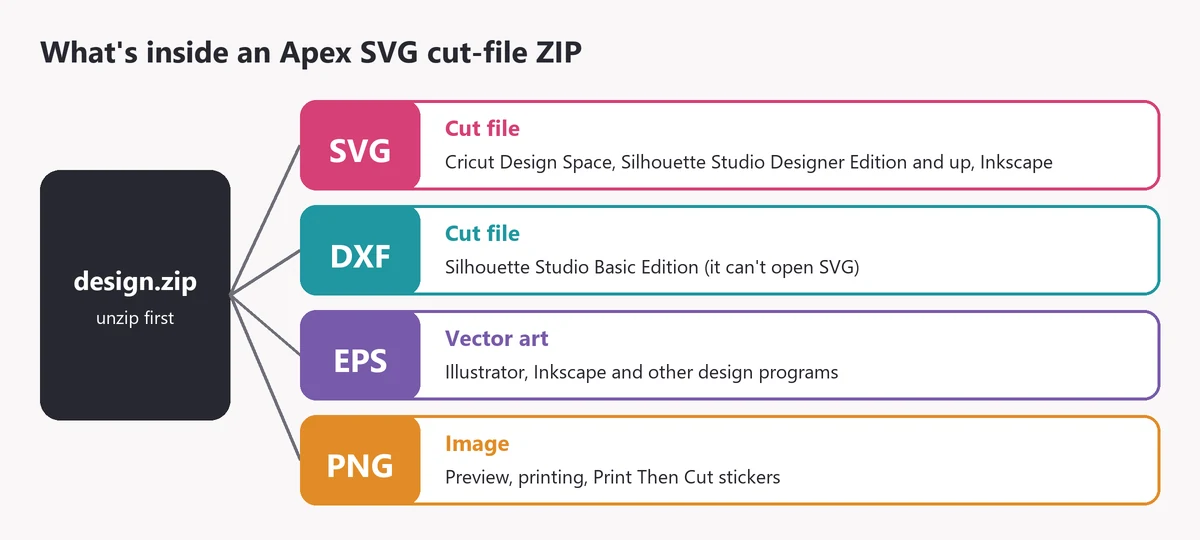
If your computer hides file extensions, all four files may look like they have the same name. Turn on extensions (on Windows: View > Show > File name extensions) or look for the file listed as "SVG Document" or that opens in a web browser.
How to Upload an SVG to Cricut Design Space, Step by Step
Step 1: Download and Extract the File
Save the ZIP somewhere easy to find. A folder called "Cricut SVGs" keeps all your purchases together. Extract it as described above and open the new folder.
Step 2: Open a New Project in Design Space
Open Design Space and start a new project. You can also upload from inside an existing project.
Step 3: Click Upload, Then Upload Image
Find Upload in the toolbar on the left side of the canvas. On the upload screen, choose Upload Image. Uploading your own SVG files is free and doesn't need a Cricut Access subscription.
Step 4: Select the .svg File
Click Browse (or drag the file onto the window), go to your extracted folder and select the file ending in .svg. Design Space skips the background-removal screens for SVGs and takes you straight to the save screen. Give the file a clear name, add a tag such as "Christmas" or the font name so you can search for it later, and click Upload.
Design Space uploads one file at a time. For a font or a pack, repeat this step for each file you need. Each file only has to be uploaded once.
Step 5: Add It to the Canvas and Check the Size
Your new upload appears at the top of your recent uploads. Select it and click Add to Canvas. Then check the width and height in the Size box at the top. Imported SVGs don't always come in at the size you expect. Keep the lock closed while you resize so the design keeps its proportions.
Step 6: Make a Small Test Cut
Before you cut a whole sheet of vinyl, cut the smallest or thinnest part of the design on a scrap. If it cuts and weeds cleanly, the rest will too. Then click Make It, check the mat preview, choose your material and cut.
Uploading SVGs on iPhone, iPad and Android
The Design Space app can upload SVG files too. Unzip the file first in your phone's Files app, then in the app tap Upload and choose to browse your files instead of your photos. Pick the .svg file and save it. Editing tools such as Weld and Attach are under the Actions menu on mobile. DXF files don't work in the mobile app, so always use the SVG.
How to Work with Layered SVG Files
Many SVGs have more than one color. Each color is a separate layer, and Design Space cuts each one on its own mat.
- Grouped layers: a layered SVG usually arrives as a group. Ungroup it if you want to move, resize or recolor one layer.
- Attach: keeps pieces of the same color in position on the mat, for example letters that must stay spaced exactly as on screen.
- Weld: merges overlapping shapes into one piece with one outer cut line. Good for script words and monograms.
- Group: only moves things together on the canvas. It doesn't change how they cut.
- Hidden layers: a layer with its eye icon turned off won't cut. Check the Layers panel if a piece seems missing.
For a hands-on example with initials and a frame, see how to put a monogram in a frame in Cricut Design Space.
Keep Your Uploads Organized
Uploads are saved to your Cricut account, so they're there the next time you sign in, even on another computer or the app. After a few months of projects, though, the uploads list gets long. A few habits help:
- Name files clearly when you save them, for example "Hampton monogram Ctr_S" instead of the default file name.
- Add tags for the theme, the shop and the font name. You can then search your uploads by tag.
- Upload a whole font once. If you'll use a monogram font often, upload all the letters in one sitting with the same tag. Next time you only search and add.
- Delete test uploads you won't use again, so the right file is easy to spot.
- Keep the original ZIP in a backup folder. If you ever need the DXF or PNG version, it's still there.
Troubleshooting SVG Upload Errors
| Problem | Likely cause | Fix |
|---|---|---|
| "File type not supported" or the file is grayed out | You selected the ZIP, or the PNG/DXF version | Unzip first and pick the file ending in .svg |
| You can't find the file in the Browse window | You're looking inside the ZIP, or file extensions are hidden | Open the extracted folder. Show file extensions on your computer. |
| Upload fails on a very detailed design | Cricut limits uploaded SVGs to 5,000 paths | Upload each part separately, or simplify the design in a vector program |
| Parts of the design are missing on the canvas | A layer is hidden, or the design is still grouped under another layer | Open the Layers panel, turn on hidden layers and ungroup |
| The design imports tiny or huge | The file's document size differs from what you expected | Resize with the lock closed. Measure your blank first. |
| The design looks like one solid block | It was uploaded as a PNG or JPG image, not the SVG | Delete it and upload the .svg version |
| The download won't open at all | The download was interrupted | Download it again. If it still fails, contact the shop. |
Upload worked but the cut came out wrong? That's a different problem. See Cricut not cutting correctly? 10 fixes.
SVG Fonts vs Installable Fonts
An SVG font is an alphabet of separate SVG files. You upload each letter you need, arrange them and Weld or Attach them. A TrueType or OpenType font (.ttf or .otf) is installed on your computer and typed with Design Space's Text tool. Apex sells both, and our guide on how to use Apex fonts in Cricut Design Space covers each in detail, including how to build a three-letter monogram.
Cricut SVG Upload FAQ
Do I need Cricut Access to upload SVG files?
No. Uploading and cutting your own SVG files is free in Design Space. Cricut Access is a subscription for Cricut's own image and font library.
Can I upload SVG files on my phone?
Yes, in the Design Space app for iOS and Android. Unzip the file in your Files app first.
Can I resize an SVG without losing quality?
Yes. SVGs are vector files, so they stay sharp at any size. The limit is your material: very small details may not cut cleanly. Read more in SVG vs PNG for Cricut.
Can I upload SVGs to a Silhouette instead?
Yes. Silhouette Studio Designer Edition opens SVG files. The free Basic Edition uses the DXF file. See how to use SVG and DXF files in Silhouette Studio.
Try Your First Project with an Apex SVG
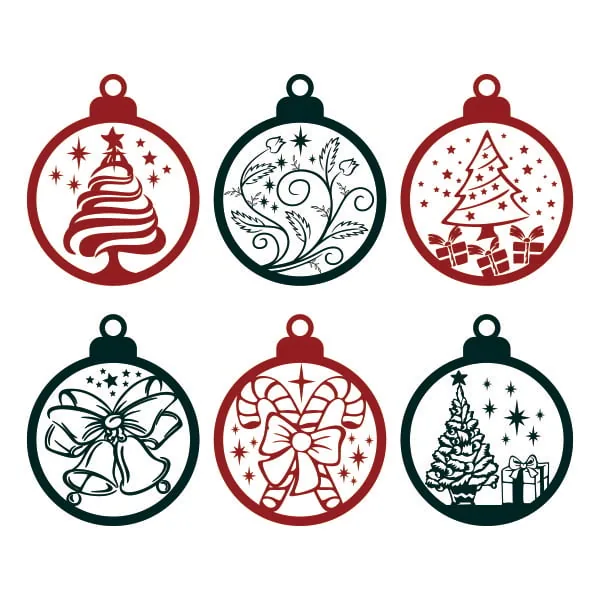
Practice with a simple project, then try layers. A three-letter monogram from the Hampton Monogram Cuttable Font makes a great first vinyl decal, and the Christmas Ornament Svg is a one-color cardstock project you can finish in an evening. Browse all SVG cut files or the monogram SVG fonts, or pick a starter idea from our easy Cricut projects for beginners.