


How to Merge Embroidery Font Letters in SewWhat-Pro

SewWhat-Pro is an affordable Windows embroidery editor from S&S Computing, and it is one of the easiest ways to turn an alphabet set into a finished name. Apex fonts come as one stitch file per letter, so you merge the letters you need into a single design and save it for your machine.
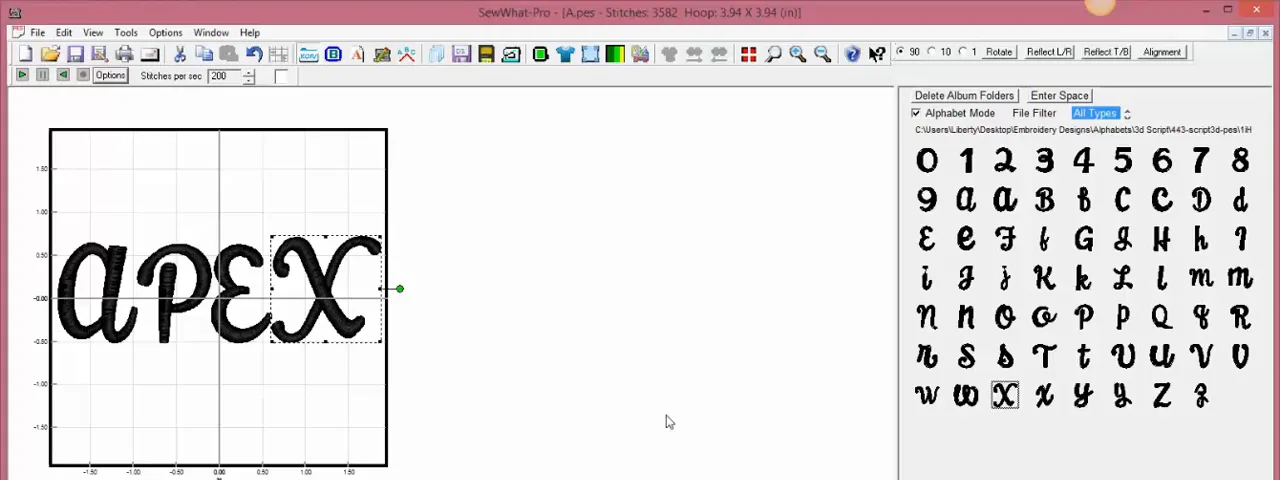
The video below uses our 3D Puff Panama Script Embroidery Fonts to build the word "APEX". The steps are written out underneath.
Before You Start
- SewWhat-Pro runs on Windows, including Windows 11. S&S Computing offers a free 30-day demo. Do not install updates during the demo, because that ends the trial early.
- Unzip your Apex font and note the folder for your machine format and letter size.
- Save a copy right away. After opening the first letter, use File > Save As with a new name so the original letter file stays untouched.
Method 1: Merge Letters with File > Merge
- Go to File > Open and open the first letter.
- Go to File > Merge (Ctrl+M), choose the next letter and click Open.
- Repeat for every letter in the name. Merge them in stitch order, left to right, because the first letter stitches first.
- Click and drag each letter into place. Ctrl+click selects several letters at once, and View > Grid Lines helps you keep them level.
Method 2: Type a Name with Alphabet Mode
This is the faster way, and it is what we use in the video.
- Open the first letter of the name.
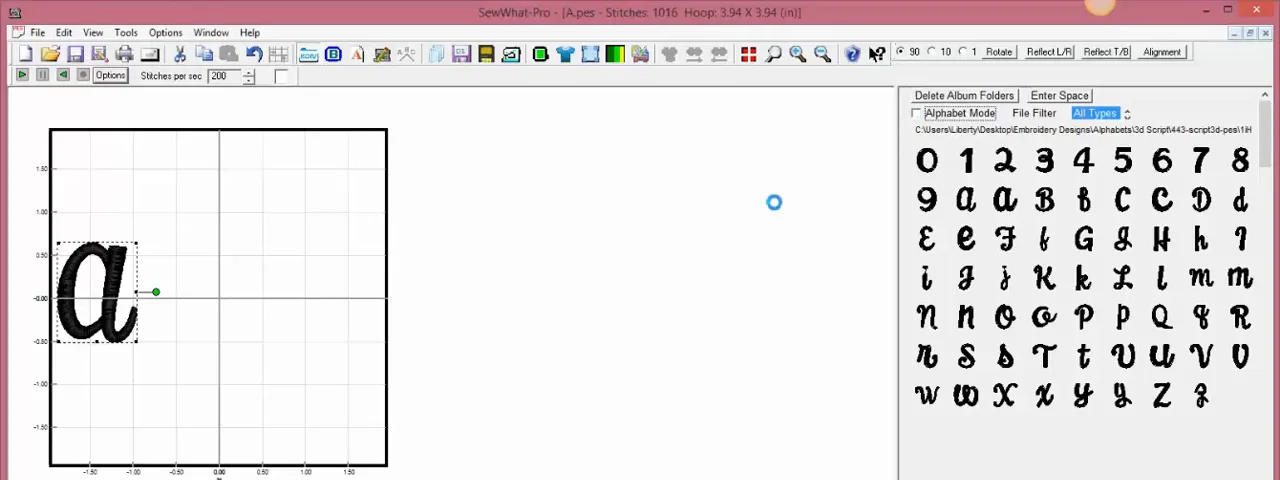
- Open the album panel with View > Album Icons (the ICON button on the toolbar). It shows every file in the font folder as a picture.
- Tick Alphabet Mode at the top of the album.
- Click the letters in order. Each one is placed to the right of the last, like typing. Use the arrow keys to nudge the last letter for spacing or baseline.
Align, Space and Rotate
- Alignment: the Alignment button on the toolbar (Tools > Align Text) lines letters up along the bottom and can adjust spacing by a percentage.
- Rotate: choose 90, 10 or 1 degree steps on the Rotate toolbar, or drag the green handle.
- Center: Tools > Center Pattern puts the finished name in the middle of the hoop.
- Hoop: set your hoop size under Options > Hoops so the design preview matches your machine.
Join Threads So the Machine Does Not Stop Between Letters
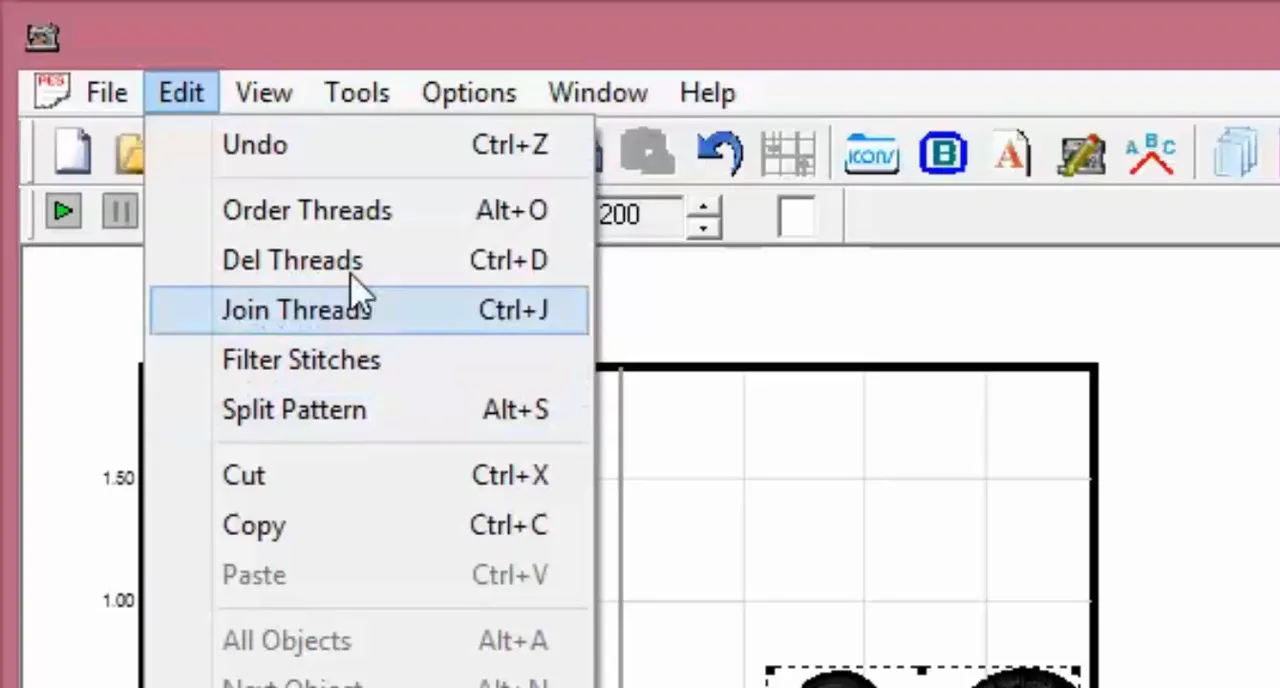
Each letter file has its own color stop. If the whole name is one color, go to Edit > Join Threads (Ctrl+J) and choose to join all adjacent threads of the same color. The machine will then stitch the whole name without asking for a thread change after every letter. Edit > Order Threads lets you reorder colors for multi-color designs.
Resize and Save
Start with the size folder closest to what you need. If you still need to resize, use Tools > Resize Pattern, keep "Lock Aspect Ratio" on and turn on automatic stitch density adjustment. Stay within about 20% of the original size.
When you are happy with the name, choose File > Save As and pick your machine's format, for example .pes for Brother and Baby Lock. After saving, the letters become one design. If you need to edit a single letter again, Edit > Split Pattern separates it.
Troubleshooting
- Letters overlap or sit too far apart. Select the letter and nudge it with the arrow keys, or use the Alignment tool's spacing field.
- The machine stops after every letter. Run Edit > Join Threads before saving.
- The merged name lands in the wrong place. Under Options, the File Merge setting controls where merged files are placed: at the same offset, at the upper left or centered.
- The design is too big for the hoop. Rebuild the name from a smaller size folder instead of shrinking it a lot.
- The file will not open on the machine. Make sure you saved in your machine's format and that the design fits the hoop set on the machine.
Fonts to Try
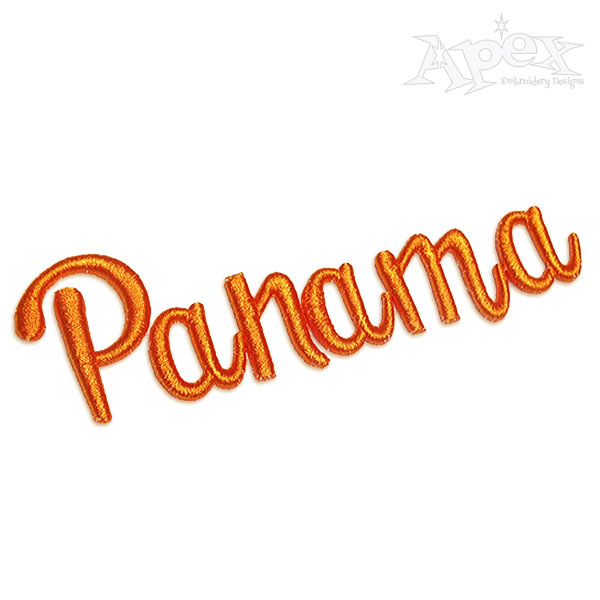
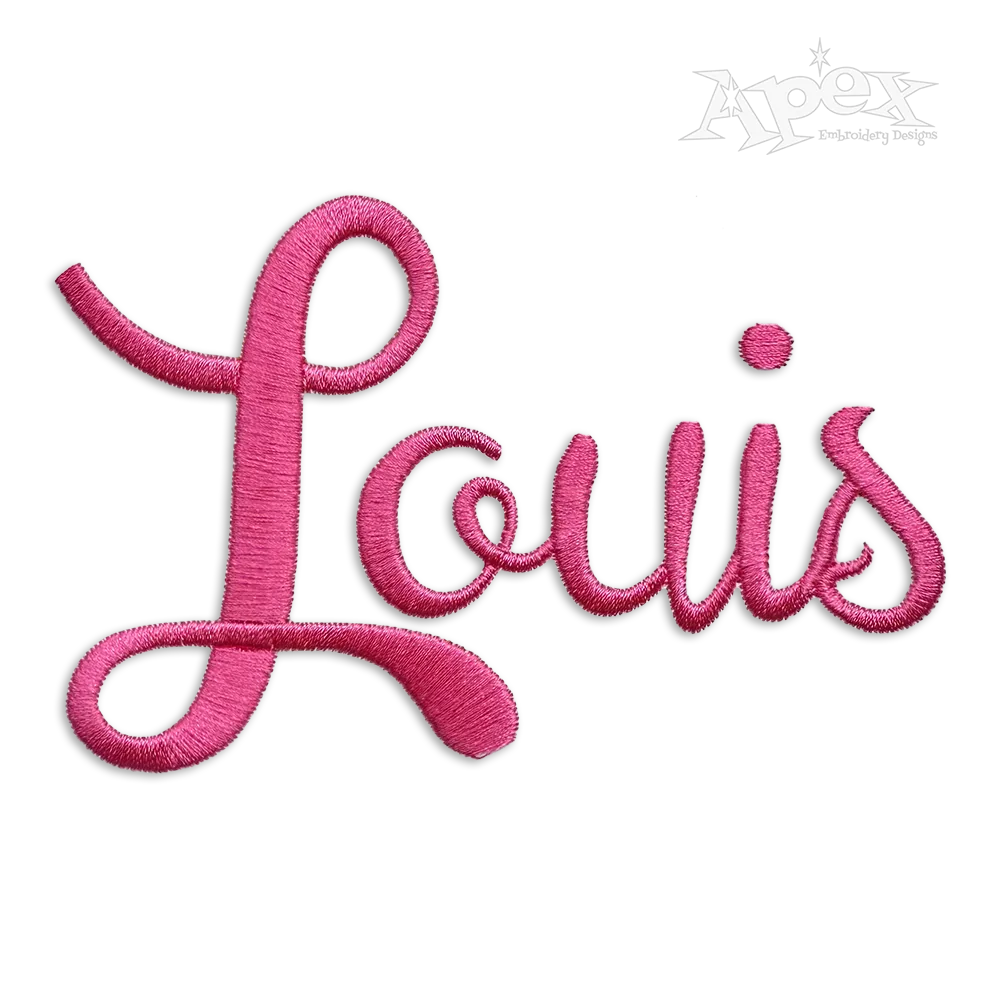
The 3D Puff Panama Script Embroidery Fonts gives a raised, bold look on caps and sweatshirts. The flat Panama Embroidery Font is the same letter style for everyday satin stitching. For more ideas, read 15 best embroidery fonts for names, how to choose a script embroidery font and our guide to 3D puff embroidery fonts. You can browse every style in our script embroidery fonts.
Prefer Embird? Follow our tutorial on merging font letters in Embird.
SewWhat-Pro FAQ
How much does SewWhat-Pro cost?
At the time of writing, S&S Computing sells SewWhat-Pro for $65 as an email download, with a free 30-day demo. Check sandscomputing.com for current pricing.
Is SewWhat-Pro available for Mac?
No, it is a Windows program. Mac users run it through Windows emulation such as CrossOver.
What is the difference between SewWhat-Pro and SewWrite?
SewWhat-Pro is an editor that opens, merges and converts stitch files, including Apex alphabet files. SewWrite is a separate S&S lettering program that uses its own built-in alphabets.