


How to Merge Embroidery Font Letters in Embird (Step by Step)

Apex embroidery fonts come as alphabet sets: every letter, number and symbol is its own stitch file. To stitch a name or a monogram, you merge the letters you need into one design. Embird Editor does this well, and the whole job takes a few minutes once you know the steps.
In the video below we build the name "Allie" with our Curlz Embroidery Font. The written steps follow the same order.
Before You Start
- Embird runs on Windows. Mac users can run it through CrossOver or a Windows virtual machine. You can try it free for 30 days from the Embird website.
- The basic Embird program is all you need to merge letters. The Font Engine plug-in is a separate add-on for typing with built-in fonts. It is not required for Apex alphabet files.
- Unzip your font first. Your download is a zip file with a folder for each machine format and size. Extract it to a folder you can find easily, such as Documents > Embroidery > Fonts.
- Pick one size and one format. Use letters from the same size folder (for example 1 inch) and your machine's format, such as PES for Brother and Baby Lock or JEF for Janome.
How to Merge Letters in Embird Editor
1. Open Embird Editor and choose your hoop
Open Embird and click Editor. Set your hoop with Options > Hoop Size so you can see right away whether the finished name will fit.
2. Open the first letter
Go to File > Open, browse to your font folder and open the first letter of the name.
3. Merge the remaining letters
Go to File > Merge. The Merge Files window shows a preview of each file, which helps when letter files are named with codes. Select the next letter and click OK. Repeat for every letter. You can also Shift-click several files to merge them in one go.
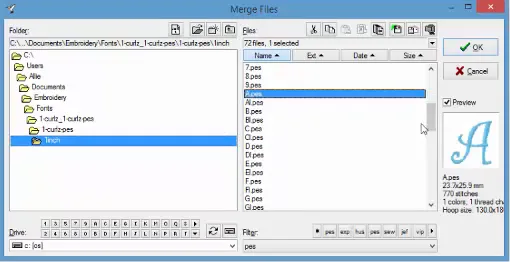
Tip: merge the letters in the order you want them to stitch, usually left to right. The first letter in the list stitches first.
4. Arrange and space the letters
Every merged letter lands in the middle of the hoop. Click a letter and drag it into position. Keep the spacing even and the baseline straight. Edit > Align lines up selected letters along an edge, using the first selected letter as the reference. For script fonts like Curlz, let the connecting strokes touch or overlap slightly so the name reads as one word.
5. Join the letters and center the name
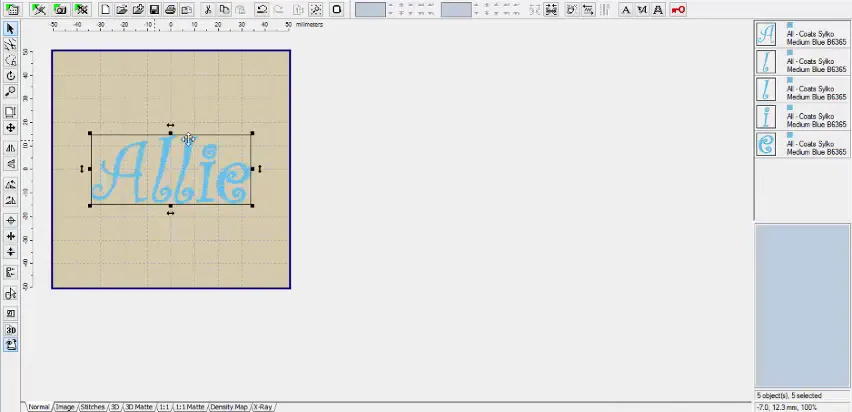
Select all the letters (Edit > Select All) and click Join so they become one object. Then use Edit > Center to place the name in the middle of the hoop.
6. Reduce color changes
If every letter is the same thread color, Embird may still stop between letters. Edit > Sort Colors combines same-color areas, and Options > Join Same Consecutive Colors removes the extra stops, so you are not asked to "change" to the same thread five times.
7. Save in your machine format
Choose File > Save As, pick your machine's format (PES, DST, JEF, EXP, VP3 and so on), give the file a name and save it. Keep the original letter files untouched so you can build other names later.
Resizing Merged Letters Safely
Each Apex font already comes in several sizes, so the best choice is to start from the size folder closest to what you need. If you still need to resize, use Edit > Set Size and turn on stitch density adjustment, so Embird recalculates the stitches instead of stretching or squashing them. As a rule of thumb, keep resizing within about 20% up or down. Bigger changes can make satin stitches too loose or so dense they break thread.
Troubleshooting
- Letters do not line up. Turn on the grid and use Edit > Align on the bottom edge of the letters.
- The design is too big for the hoop. Use a smaller size folder from the font rather than shrinking the letters a lot.
- Too many thread stops. Run Sort Colors and Join Same Consecutive Colors before saving.
- Your machine does not see the file. Check that you saved in your machine's format and that the design fits the hoop you selected on the machine.
Fonts That Work Well for Names
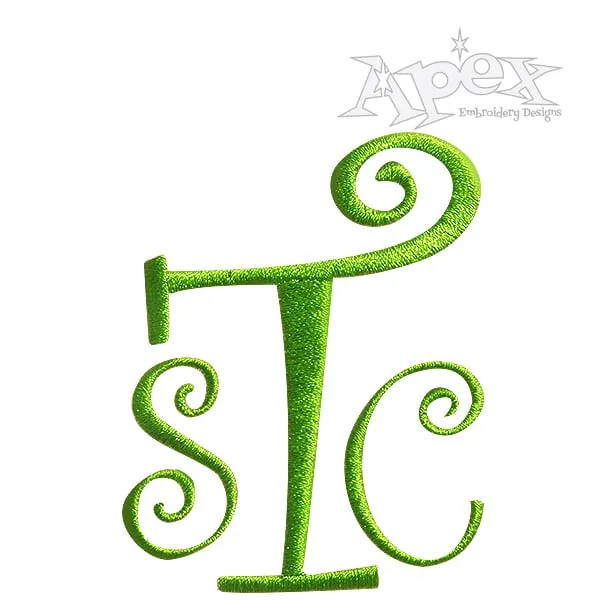
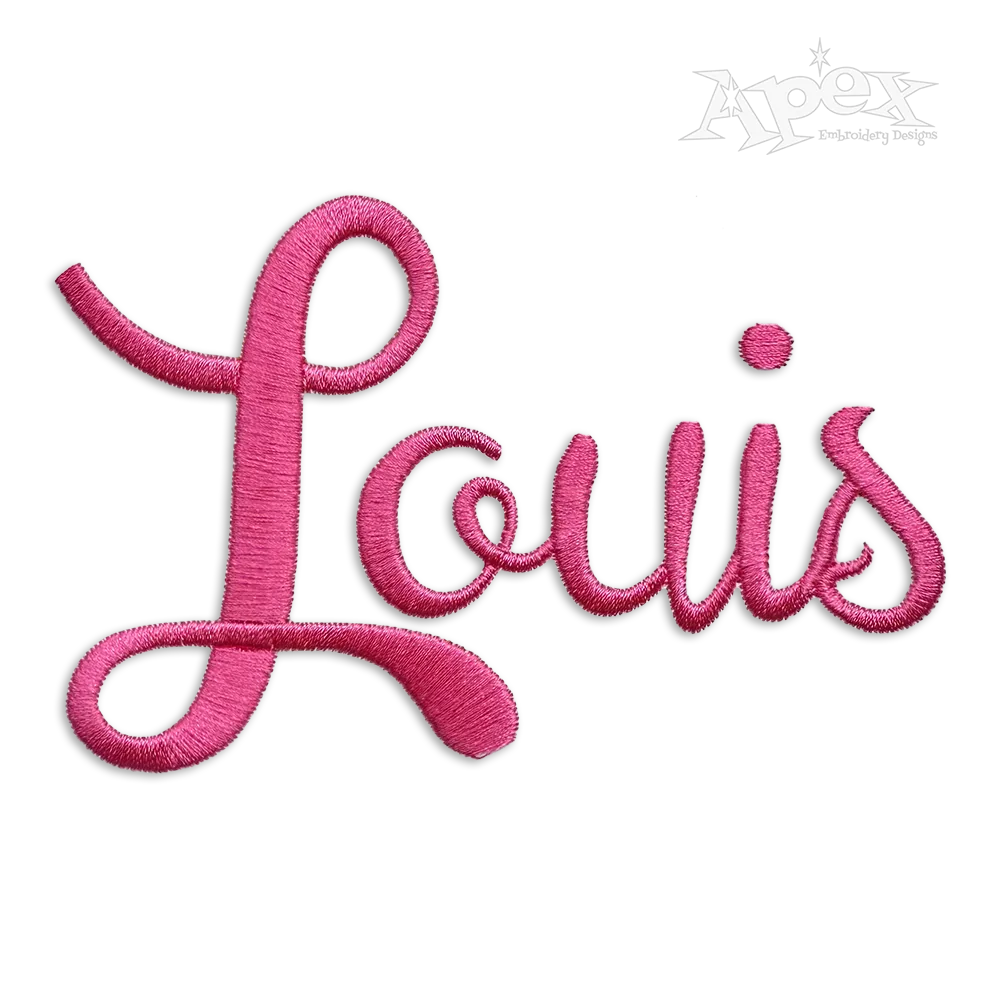
Curlz is one of our most requested name fonts, and it comes in many variations, including Curlz Small Embroidery Font, Curlz Embroidery Font Large and Curlz Circle Embroidery Font for monograms. Browse our full embroidery font collection, or read 15 best embroidery fonts for names and our beginner's guide to embroidery fonts to choose a style.
Using different software? We have a matching tutorial for merging font letters in SewWhat-Pro. For monograms, see how to choose the right monogram embroidery font.
Embird FAQ
Is Embird free?
No. Embird offers a free 30-day trial. After that you buy the basic program, and optional plug-ins such as Font Engine and the Studio digitizing tools are sold separately.
Do I need Embird Font Engine to use Apex fonts?
No. Apex fonts are individual stitch files, so you merge them in the basic Embird Editor as shown above.
Can I use Embird on a Mac?
Embird is a Windows program. Embird suggests CrossOver for Mac users, and it also runs in Windows virtual machines such as Parallels.