


How to Convert a Logo to DST for Embroidery Machines

Have a company logo saved as a PNG, JPG, or SVG, but your embroidery machine needs a DST file? You're not alone. This is a common challenge for embroidery shops, apparel businesses, and anyone preparing custom logos for machine embroidery.
The good news is that you can convert a logo to DST using embroidery digitizing software or a professional digitizing service. However, the process involves more than simply changing the file extension. Your artwork must first be transformed into carefully planned stitch instructions that an embroidery machine can follow.
In this guide, we'll explain how to convert a logo to DST for embroidery machines, walk through the process step by step, compare software options, and show you how to avoid common mistakes that affect embroidery quality.
Quick Answer: To convert a logo to DST, prepare your PNG, JPG, or vector artwork, open it in embroidery digitizing software, convert the design elements into stitches, adjust stitch settings, and export the finished design as a DST file. You can also use a professional embroidery digitizing service to create the file for you.
What Is a DST File in Embroidery?
A DST file is a machine embroidery format originally associated with Tajima embroidery machines. Today, it is also widely supported by commercial embroidery equipment from other manufacturers.
Unlike ordinary image files, a DST file contains stitch-related instructions that tell an embroidery machine how to move as it creates a design.
These instructions include stitch positions, movement commands, and stops used during the embroidery process. The machine reads this information to reproduce the design using thread.
One important limitation is that DST files do not store actual thread color information. They can contain color-change commands, but the colors displayed in embroidery software may not match the intended thread colors. A separate color sheet or production worksheet is often necessary.
DST vs. PNG, JPG, SVG, and PES: What's the Difference?
Before converting your logo, it helps to understand the difference between graphic files and embroidery files.
| File Format | Primary Purpose | Contains Stitch Instructions? |
|---|---|---|
| PNG | Raster artwork with optional transparency | No |
| JPG/JPEG | Photographs and raster graphics | No |
| SVG | Scalable vector artwork | No |
| DST | Machine embroidery stitch instructions | Yes |
| PES | Machine embroidery format commonly used by Brother and Baby Lock | Yes |
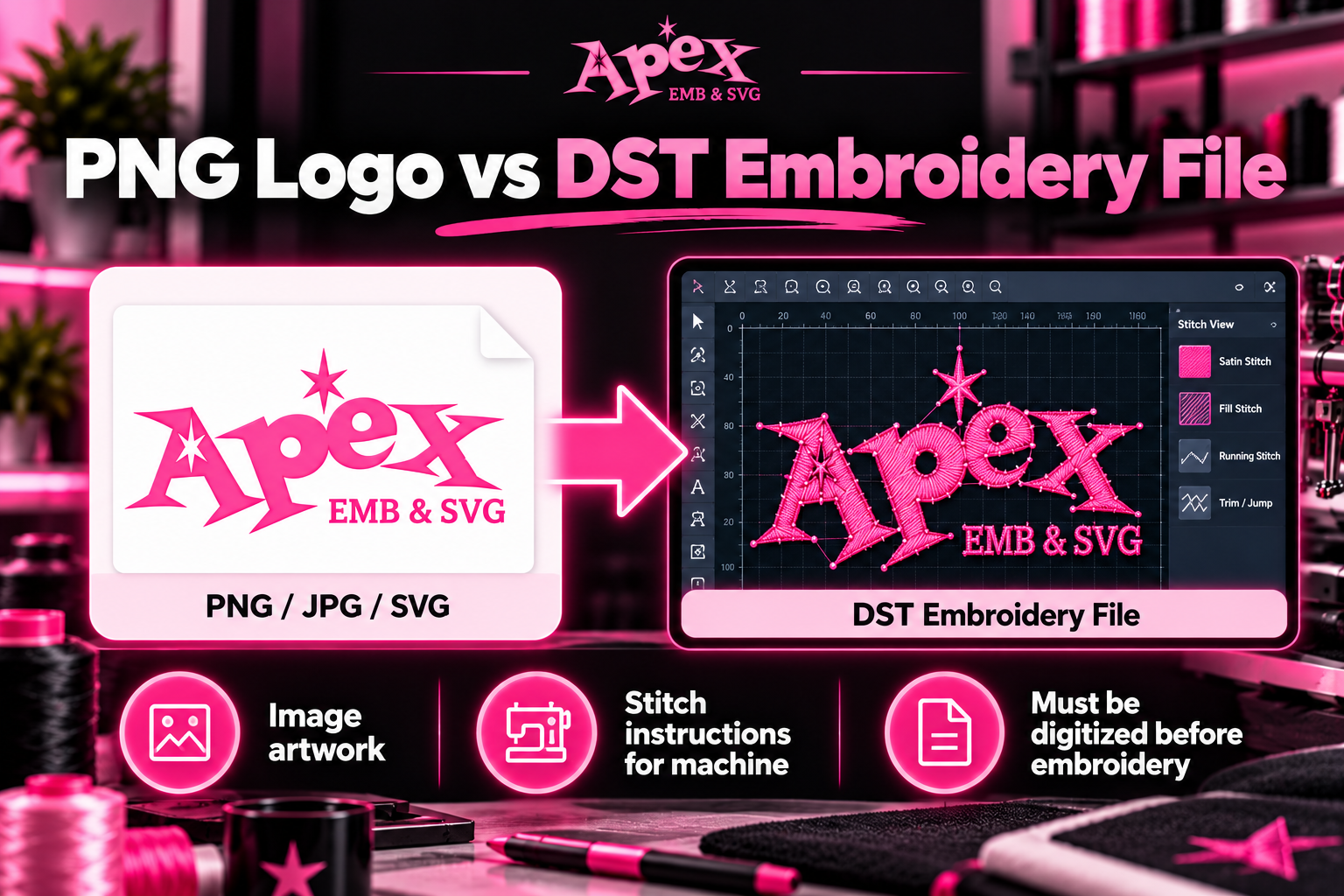
For example, if you have a company logo in PNG format, you cannot load it directly into an embroidery machine that only supports DST files. The logo must first be digitized into a stitch design and saved in the correct machine format.
It's also important to check your embroidery machine's documentation. Although DST is widely supported, not every machine accepts it.
Can You Convert a PNG or JPG Logo Directly to DST?
Yes, you can turn a PNG or JPG logo into a DST embroidery file, but you cannot do it by simply renaming the file or using an ordinary image converter.
A digital image describes how a design looks. An embroidery file describes how the machine should stitch it.
For example, a JPG logo might contain a blue circle, white lettering, and a red border. Embroidery digitizing software must determine which stitches will create the circle, how the lettering should be constructed, and how the border should be sewn.
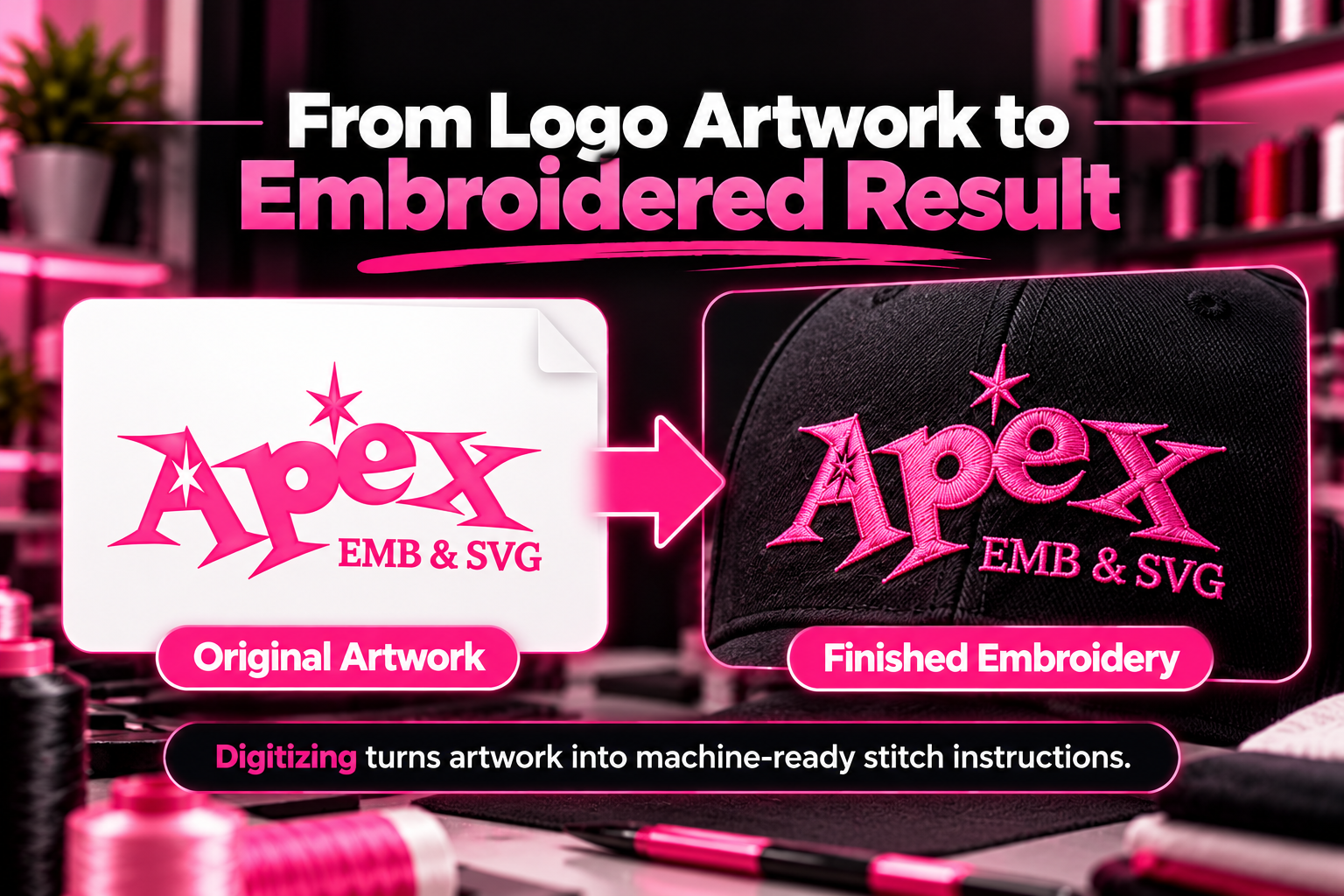
This transformation is called embroidery digitizing.
There are three approaches to consider:
- Manual digitizing: A digitizer creates and adjusts stitch objects individually, controlling details such as stitch direction, density, and sequencing.
- Auto-digitizing: Software automatically generates stitches from artwork. This can save time, but the resulting design may require significant corrections.
- Professional digitizing: An experienced digitizer prepares the artwork, creates the stitch design, and exports the file for the intended embroidery application.
Automatic conversion can work reasonably well with simple designs, but complex business logos, small lettering, gradients, and intricate details often need more careful digitizing.
If you're creating a logo for commercial embroidery, the goal isn't just to obtain a DST file. It's to obtain a DST file that stitches cleanly and consistently.
How to Convert a Logo to DST: Step-by-Step Guide
Whether you're preparing a logo for a polo shirt, cap, jacket, or embroidered patch, the basic process follows six essential steps.
Step 1: Prepare Your Logo Artwork
Start with the clearest version of your logo available.
Vector files such as SVG, AI, and EPS are particularly useful because their shapes can be scaled without losing image quality. A high-resolution PNG with a transparent background can also be an excellent starting point.
JPG files are acceptable, but they may require extra cleanup, especially if they contain compression artifacts or blurry edges.
Before importing the artwork into digitizing software:
- Remove unnecessary backgrounds and shadows.
- Clean up blurry or uneven outlines.
- Identify very small letters and thin details.
- Simplify gradients or photographic effects when necessary.
- Confirm the intended embroidery dimensions.
- Determine how many thread colors the design requires.
Example: Imagine a restaurant logo containing a detailed illustration, a business name, and a small tagline. When embroidered on the left chest of a polo shirt, the tagline might become too small to stitch legibly. Simplifying or enlarging that text before digitizing can produce a much better finished result.
Good artwork preparation reduces the amount of correction required later.
Step 2: Choose Embroidery Digitizing Software
Next, open your artwork in software that supports embroidery digitizing and DST export.
Several programs can help you create machine embroidery files:
- Wilcom EmbroideryStudio: Professional software designed for commercial embroidery production and advanced digitizing workflows.
- Hatch Embroidery: Embroidery software suitable for hobbyists, independent digitizers, and small businesses, depending on the edition.
- Ink/Stitch: A free, open-source embroidery extension for Inkscape that supports creating and exporting DST files.
Each program has different tools and interfaces, but the general workflow remains similar: import the artwork, create embroidery objects, adjust stitch properties, and export a machine file.
If you're completely new to embroidery digitizing and want to experiment without purchasing software, Ink/Stitch is a practical place to begin.
However, learning to use the software correctly takes practice. A beginner may be able to generate a DST file quickly but still need additional time to optimize it for actual embroidery.
Step 3: Import Your Logo and Set the Embroidery Size
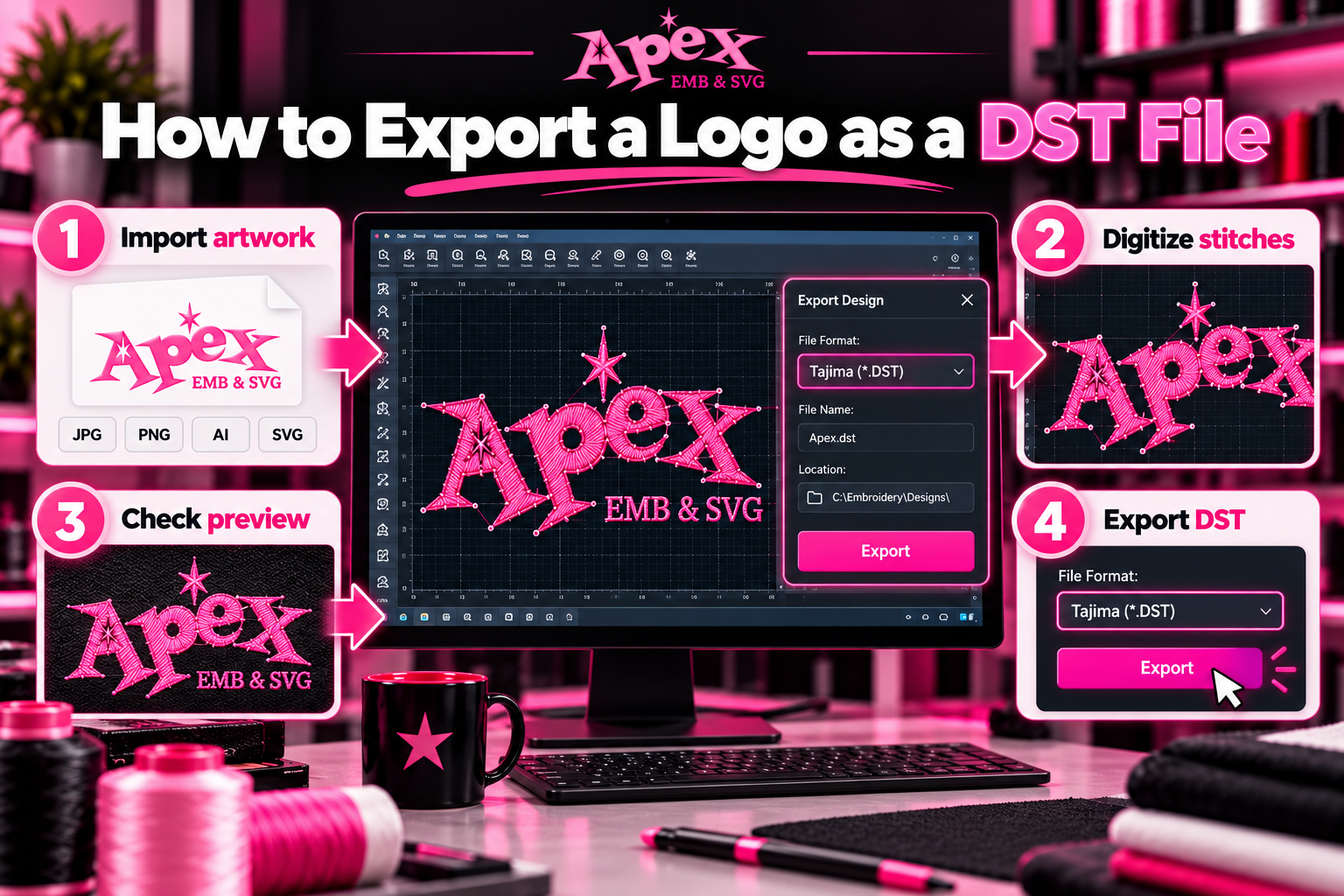
Once you've selected your software, import the logo and specify the intended embroidery dimensions.
This step is more important than it may initially appear.
A design digitized for a large jacket back will usually require different stitch construction than the same logo prepared for a small left-chest placement.
For instance:
- A compact left-chest logo may need simplified lettering and fewer intricate details.
- A cap logo may require sequencing and compensation adjustments suited to the cap's structure.
- A large jacket-back design may use fill stitches to cover broad sections efficiently.
Always check the usable embroidery area of your hoop and machine before deciding on the final dimensions.
Important: Avoid significantly resizing a finished DST file without checking the stitch properties. DST is primarily a stitch-coordinate format, and large scaling changes can affect stitch lengths, spacing, and overall quality.
For substantial size changes, editing the original digitizing project and generating a new DST file is generally the better approach.
Step 4: Convert the Logo into Embroidery Stitches
This is the most important part of converting a logo to DST.
Digitizing software must transform each element of the logo into stitch objects that the embroidery machine can execute.
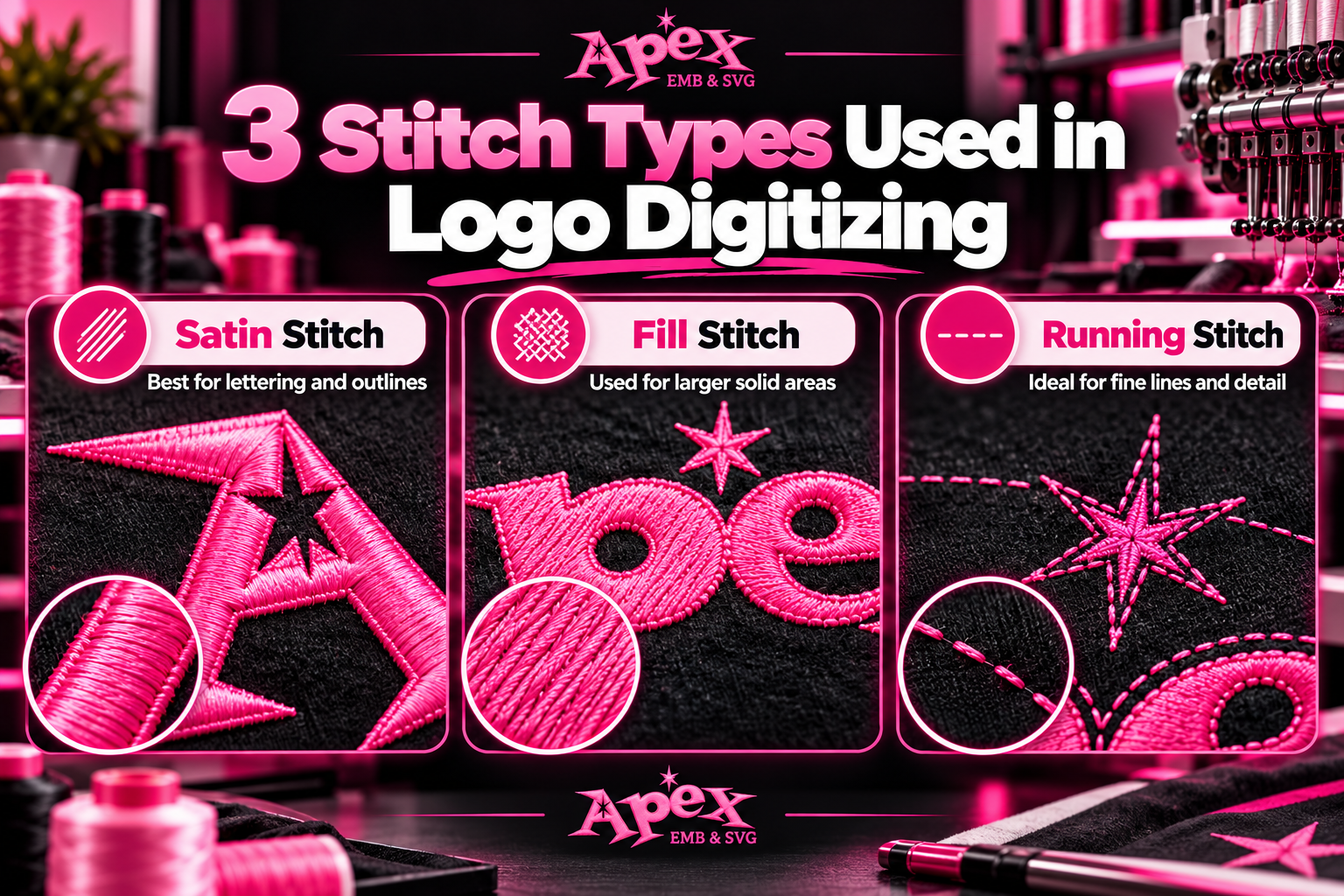
Three common stitch types are used in logo embroidery:
Satin Stitches
Satin stitches create smooth, closely arranged columns of thread. They are commonly used for lettering, borders, and relatively narrow design elements.
Fill Stitches
Fill stitches cover larger areas using rows or patterns of stitches. They are useful for broad shapes, backgrounds, and larger sections of a logo.
Running Stitches
Running stitches follow a line or path and can be used for outlines, fine details, and connecting elements.
Choosing the stitch type is only the beginning. A properly digitized design also requires adjustments to:
- Stitch density: How closely stitches are placed together.
- Stitch direction: The angle and flow of stitching across an object.
- Underlay: Supporting stitches placed beneath visible top stitches.
- Pull compensation: Adjustments that help account for fabric distortion during embroidery.
- Stitch sequencing: The order in which design elements are embroidered.
- Jump stitches and trims: Movements between design sections that may require thread trimming.
For example, a logo featuring white lettering inside a large navy rectangle needs the stitching sequence and density planned carefully. If the design contains unnecessary overlapping stitches, the fabric may become stiff or distorted.
This is why professional embroidery digitizing involves more than tracing an image.
To understand these techniques in greater detail, read our complete guide to digitizing embroidery designs.
Step 5: Preview and Test Your Embroidery Design
Before exporting the DST file, use your software's stitch simulator or embroidery preview tool.
A stitch simulation can help identify:
- Unnecessary jump stitches between objects.
- Incorrect stitching order.
- Areas with excessive stitch density.
- Gaps between adjacent embroidery sections.
- Potentially problematic small lettering.
- Design elements that may be difficult to embroider.
However, a digital preview cannot fully predict how thread will behave on real fabric.
For a new logo, especially one intended for commercial production, we recommend sewing a test sample using fabric and stabilizer similar to those planned for the finished product.
Inspect the test embroidery for puckering, thread breaks, uneven outlines, poor registration, and distorted shapes.
If any problems appear, return to the original digitizing file, adjust the settings, and test again.
A successful test stitch is a much stronger indication of production readiness than a file that merely opens in embroidery software.
Step 6: Export Your Logo as a DST File
Once you're satisfied with the digitized design, export it in DST format.
The exact menu options depend on the software you're using.
In Ink/Stitch, for example, the general export process is:
- Open your prepared embroidery design in Inkscape with Ink/Stitch installed.
- Choose File > Save a Copy.
- Select the appropriate Ink/Stitch DST embroidery format.
- Choose the destination folder and file name.
- Save the exported machine file.
You can find additional instructions in the official Ink/Stitch import and export documentation.
After exporting, check the file in compatible embroidery software to confirm that its dimensions, stitch sequence, and stops are correct.
Also retain the original editable project file. This allows you to make adjustments without rebuilding the embroidery design from a DST file.
Pro Tip: Save a separate production note containing the thread color sequence, intended design size, fabric type, and any special machine instructions. Since DST files do not preserve actual thread color information, this documentation helps prevent color mistakes during production.
Best Software for Converting Logos to DST
Choosing the right software depends on your experience, budget, and how frequently you need to create embroidery files.
| Software | Best For | Cost Model | DST Support |
|---|---|---|---|
| Wilcom EmbroideryStudio | Professional embroidery businesses | Commercial paid software | Supported |
| Hatch Embroidery | Hobbyists and independent digitizers | Paid software | Supported in relevant editions |
| Ink/Stitch | Beginners and budget-conscious users | Free and open-source | Supported |
Which software should you choose?
If you're learning embroidery digitizing for occasional personal projects, Ink/Stitch offers a free starting point. If you regularly create custom embroidery designs, paid digitizing software may provide a more convenient workflow and advanced production tools.
However, purchasing software does not automatically guarantee good results. Your understanding of stitch construction, fabric behavior, and embroidery production remains essential.
For a business that only needs occasional logo conversions, outsourcing to an experienced digitizer may be more practical than purchasing software and learning the entire process.
Common Problems When Converting a Logo to DST
Even when your embroidery machine successfully recognizes the DST file, the final result may not match the original logo.
Here are several common problems and how to address them.
| Problem | Possible Cause | Recommended Solution |
|---|---|---|
| Logo looks distorted | Incorrect compensation, poor stabilization, or unsuitable stitch settings | Review pull compensation, underlay, stabilizer, and stitch directions. |
| Small text is unreadable | Lettering is too small or overly detailed | Enlarge, simplify, or redigitize the lettering. |
| Fabric puckers | Excessive density, poor stabilization, or tension issues | Adjust density, underlay, stabilizer, and machine settings. |
| Thread breaks repeatedly | Dense stitch areas, needle or tension problems, or excessive friction | Inspect the stitch design, needle, thread path, and tension. |
| DST displays incorrect colors | DST does not preserve actual thread colors | Follow a separate thread color chart. |
| Logo has visible gaps | Fabric movement, registration problems, or insufficient compensation | Review sequencing, compensation, and stabilization. |
| Machine cannot read the file | Unsupported format, transfer issue, or machine-specific limitation | Verify machine compatibility, file integrity, and transfer requirements. |
Why Does My DST File Show the Wrong Colors?
This is a particularly common source of confusion.
You might digitize a logo with red, blue, and white sections, export it as DST, and then reopen it to find a completely different set of colors.
That doesn't necessarily mean the file is damaged.
The DST format stores stitch movements and color-change commands but not the actual thread color values. Embroidery software may assign its own default colors when displaying the file.
To avoid production mistakes, maintain a separate thread color sequence and confirm each color change before stitching.
Can You Convert a Logo to DST for Free?
Yes. You can create a DST embroidery file without purchasing commercial digitizing software by using free tools such as Ink/Stitch.
However, free software does not mean the process is automatic or effortless.
You still need to prepare the logo, create embroidery objects, select suitable stitch types, adjust stitching parameters, and test the finished file.
For a simple one-color emblem, learning this workflow may be manageable. For detailed corporate logos, small lettering, or commercial embroidery orders, the digitizing process can become considerably more demanding.
Be cautious with websites advertising instant PNG-to-DST conversion. Some tools may produce usable results for simple artwork, but an automatically generated DST file should not be assumed to be ready for production without inspection and testing.
DIY vs. Professional Logo to DST Conversion
Should you convert your logo yourself or hire a professional embroidery digitizing service?
The answer largely depends on how often you need embroidery files and how important stitch quality is to your project.
| Factor | DIY Digitizing | Professional Digitizing |
|---|---|---|
| Learning required | Software and embroidery knowledge needed | No digitizing skills required from the customer |
| Initial investment | Software, equipment, or learning time | Service fee per design or project |
| Complex logos | Can be challenging for beginners | Handled by an experienced digitizer |
| Design control | Direct control over editing | Changes requested through the service |
| Best use case | Learning and frequent in-house design work | Custom branding and outsourced production preparation |
If embroidery is a long-term hobby or a major part of your business, developing digitizing skills can be valuable.
However, if you simply want to embroider your business logo on uniforms, hats, or promotional merchandise, a professional service can eliminate much of the technical work.
This is particularly relevant when your logo includes fine details, multiple colors, small lettering, or unusual shapes.
How Much Does It Cost to Convert a Logo to DST?
The cost of converting a logo into a DST file depends on several factors, including design complexity, final embroidery size, stitch requirements, and the amount of preparation needed.
A simple text-based logo generally requires less digitizing work than a complex illustration featuring detailed lettering and multiple overlapping elements.
Other factors that can affect the cost include:
- The size of the finished embroidery design.
- The number and complexity of design elements.
- The quality of the original artwork.
- Special requirements for caps, patches, or other applications.
- The need for revisions or alternative embroidery sizes.
At Apex Embroidery Designs, custom embroidery digitizing starts at $18.99 for designs measuring 4 inches or smaller. Larger designs and different project requirements may affect the final price.
For businesses that only need occasional logo conversions, professional digitizing can be a cost-effective alternative to investing in software and learning the process from scratch.
Get Your Logo Converted to DST with Apex Embroidery Designs
Need a professional DST file for your embroidery machine without spending hours learning digitizing software?
At Apex Embroidery Designs, we help businesses, embroidery shops, apparel decorators, and individual creators turn their logos and artwork into machine embroidery files.
With over 25 years of embroidery digitizing experience, our team understands the importance of preparing artwork for real stitching conditions.
Our custom embroidery digitizing service is designed for projects such as:
- Company logos for uniforms and workwear.
- Embroidered logos for caps and hats.
- Custom branding for polo shirts and jackets.
- Sports team logos and embroidered patches.
- Personalized embroidery projects and promotional products.
How to Order Custom Logo Digitizing
Getting started is simple:
- Visit our Custom Embroidery Digitizing service page.
- Choose the appropriate design size and review the available options.
- Provide your logo artwork and relevant project details during the ordering process.
- Specify your preferred embroidery file format, such as DST, and any important requirements.
- Receive your completed digitized design according to the service's delivery terms.
Apex currently offers a typical digitizing turnaround of 1–2 days, depending on the order requirements.
For the best results, provide as much information as possible about your design, including the desired embroidery size, fabric type, and embroidery machine format.
Ready to Turn Your Logo into an Embroidery File?
Skip the complicated software setup and get a custom digitized logo prepared for your embroidery project.
Custom Embroidery Digitizing from $18.99
Frequently Asked Questions About Converting Logos to DST
Can I convert a PNG file to DST for free?
Yes. Free embroidery digitizing software such as Ink/Stitch can help you turn PNG artwork into a DST file. However, you must first create or trace suitable embroidery objects and configure their stitch properties. Simply importing a PNG and renaming the file will not produce a usable embroidery design.
Can I convert a JPG logo to a DST embroidery file?
Yes. A JPG logo can be used as source artwork for embroidery digitizing. The image may need cleanup or tracing before the design is converted into stitches. Clear, high-resolution artwork typically makes the preparation process easier.
What is the best program to convert a logo to DST?
Wilcom EmbroideryStudio, Hatch Embroidery, and Ink/Stitch are popular choices. Wilcom is designed for professional commercial workflows, while Hatch offers tools for independent digitizers and hobbyists. Ink/Stitch is a free alternative for users willing to learn its workflow.
Can I convert a logo to DST without embroidery software?
You can outsource the conversion to a professional embroidery digitizing service. The digitizer uses specialized tools to create the stitch file, allowing you to receive the required DST format without learning embroidery software yourself.
Can I use a DST file on a Brother embroidery machine?
It depends on the specific machine model. DST is widely used for commercial embroidery, but many Brother embroidery machines are designed around PES files. Always check your machine's supported formats before transferring the design.
Why does my DST file change colors when opened?
DST files do not store actual thread color information. They contain stitch and color-change instructions, so the software may display placeholder colors. Keep a separate color chart or production worksheet to ensure the correct thread colors are used.
Can I resize a DST embroidery file?
Small resizing adjustments may be possible in compatible embroidery software, but significant changes can damage stitch quality. For better results, resize the original editable digitizing design and export a new DST file with appropriate stitch settings.
How long does it take to digitize a logo into DST?
The time required varies with artwork complexity, digitizer experience, and the amount of testing or revision involved. Simple logos generally require less preparation than highly detailed designs. Apex Embroidery Designs currently lists a typical service turnaround of 1–2 days.
Final Thoughts: Create a DST File That Actually Stitches Well
Learning how to convert a logo to DST is useful for anyone working with custom machine embroidery. The basic process involves preparing artwork, digitizing the logo into stitches, optimizing stitch settings, testing the design, and exporting the final machine file.
While software makes DST creation possible, the quality of the embroidery depends on much more than file conversion. Correct stitch construction, appropriate density, fabric stabilization, and thoughtful sequencing all influence the finished result.
If you regularly create embroidery designs, learning to digitize your own artwork can be a worthwhile investment. But if you want to turn a company logo into a professional embroidery design without handling the technical details yourself, we're here to help.
Explore Custom Embroidery Digitizing at Apex Embroidery Designs and get started with your next logo embroidery project.