


How to Convert a PNG or JPG to PES for Embroidery (Step-by-Step Guide)

Have a logo saved as a PNG or JPG that you want to embroider on a shirt, hat, tote bag, or jacket? If you're using a Brother or compatible Baby Lock embroidery machine, you'll likely need a PES file before you can start stitching.
But here's something many beginners discover the hard way: converting an image to PES isn't as simple as changing its file extension or uploading it to a regular image converter.
Embroidery machines don't work with pixels. They need instructions that tell the needle where to move, how to form each stitch, and when to change thread colors.
That's where embroidery digitizing comes in.
In this guide, we'll show you how to convert a PNG or JPG to PES using free embroidery software, Brother PE-DESIGN, or professional digitizing services. We'll also explain how to avoid common conversion mistakes so your finished design looks just as good stitched on fabric as it does on your screen.
What Is a PES Embroidery File?
A PES file is a machine embroidery format commonly used by Brother and compatible Baby Lock embroidery machines. Unlike ordinary image files, PES contains stitch instructions that a compatible embroidery machine can follow to recreate a design using thread.
A PES embroidery file can contain information such as:
- Stitch positions: Where the embroidery needle should move.
- Stitch sequence: The order in which different parts of a design are embroidered.
- Thread color information: The colors associated with different sections of the design.
- Design dimensions: The intended size of the embroidery pattern.
- Machine commands: Instructions related to jumps, color changes, and other operations supported by the file and machine.
PNG and JPG files, on the other hand, are raster images made of pixels. They tell a computer how an image should look, but they don't tell an embroidery machine how to stitch it.
| Feature | PNG or JPG | PES |
|---|---|---|
| File type | Raster image | Machine embroidery file |
| Contains | Pixels and color data | Stitch and embroidery instructions |
| Primary use | Digital artwork and photos | Machine embroidery |
| Can be stitched directly? | No | Yes, on compatible machines |
| Requires digitizing? | Yes, to become an embroidery design | Already contains stitch data |
The important difference: A beautiful logo image isn't automatically a good embroidery design. It must be translated into a pattern of stitches that works with real thread and fabric.
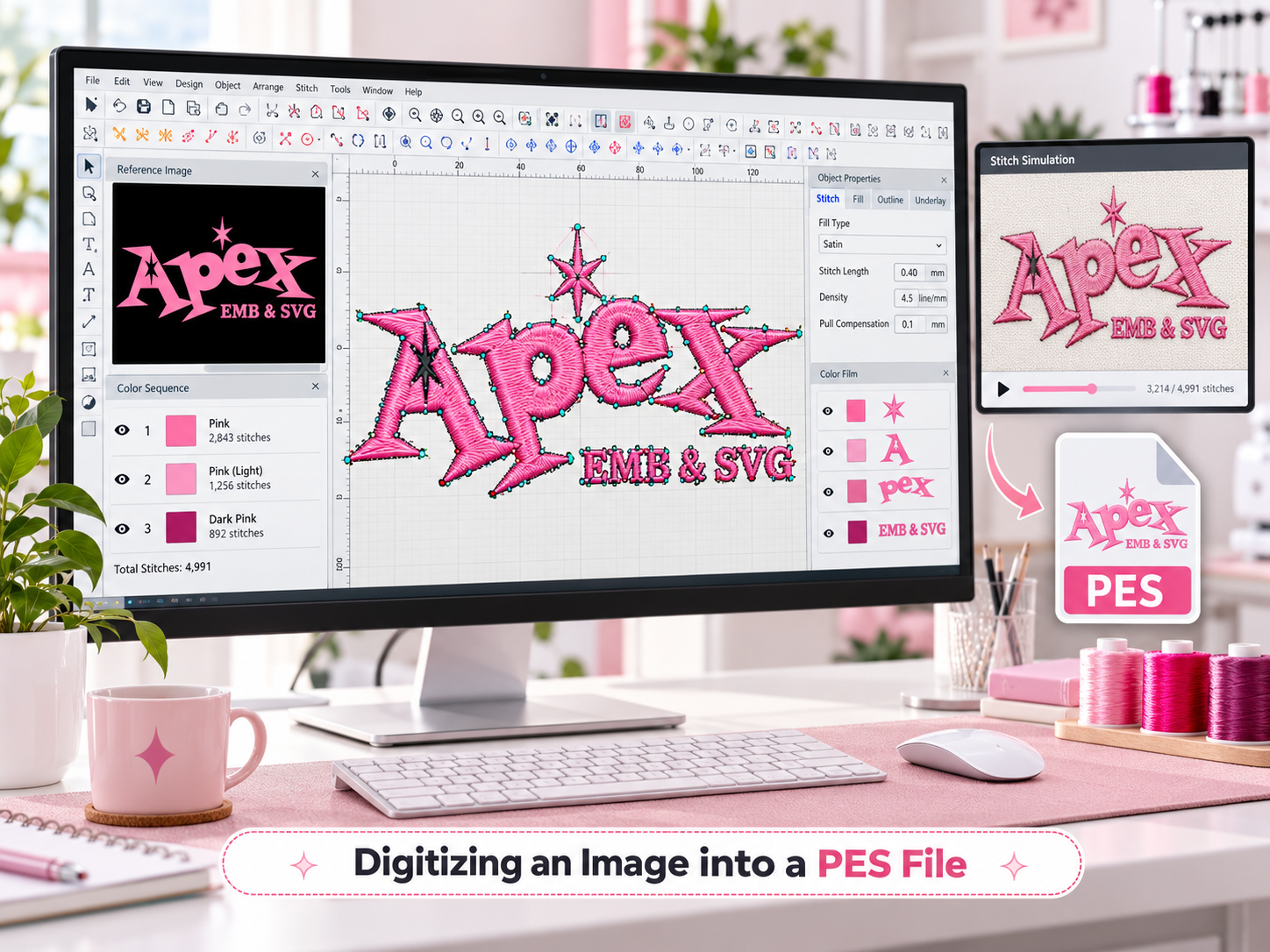
Can You Convert PNG or JPG to PES Directly?
Yes, you can turn PNG and JPG images into PES embroidery files, but the process requires embroidery digitizing software or a professional digitizer.
You cannot create a working embroidery design simply by renaming logo.png to logo.pes. Changing the extension doesn't generate the stitch instructions your machine needs.
Even online converters that advertise instant PNG-to-PES conversion need to generate embroidery stitch data in the background.
Some automatic tools can produce usable results for simple shapes. However, complex logos, small text, gradients, overlapping objects, and detailed illustrations often require manual adjustments.
For example, when converting a company logo, a digitizer needs to decide:
- Which areas should use satin stitches?
- Which areas require fill stitches?
- What stitch direction will create a clean appearance?
- How dense should the stitching be?
- What underlay is appropriate for the fabric?
- How can unnecessary jumps and trims be minimized?
These decisions affect the appearance and performance of the finished embroidery.
How to Convert PNG or JPG to PES: 3 Methods
There are three practical ways to make a PES embroidery file from an image. The best option depends on your design, budget, experience, and whether you're embroidering for personal use or commercial production.
Method 1: Convert PNG or JPG to PES for Free Using Ink/Stitch
Ink/Stitch is a free, open-source embroidery extension for Inkscape. It allows users to create stitch designs from vector artwork and export them into machine embroidery formats, including PES.
It's a useful option if you want to learn embroidery digitizing without purchasing commercial software.
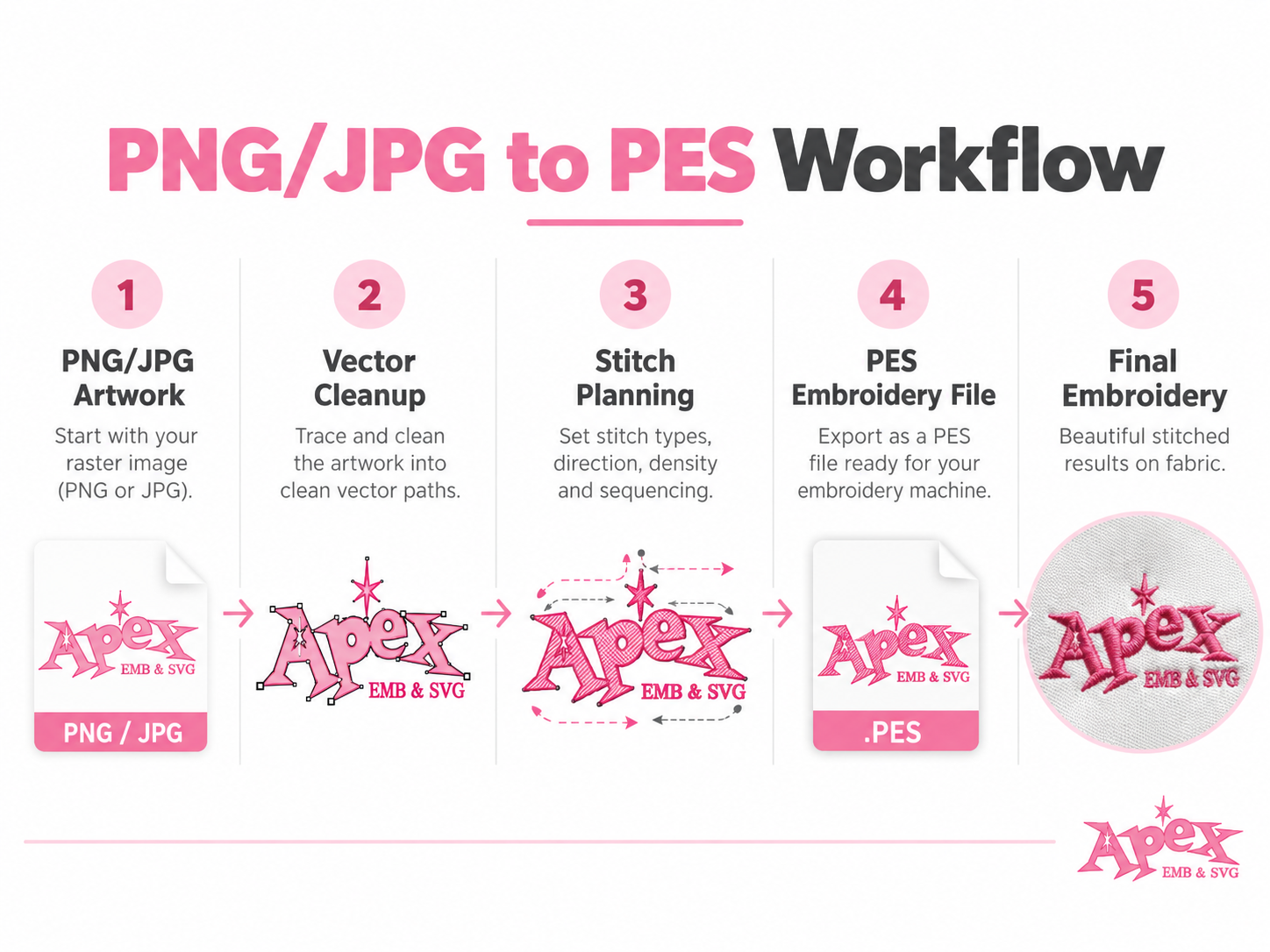
Step 1: Install Inkscape and Ink/Stitch
First, download and install Inkscape, a free vector graphics editor. Then install the Ink/Stitch extension following the instructions for your operating system.
Once installed, open Inkscape and confirm that Ink/Stitch appears under the Extensions menu.
Step 2: Import Your PNG or JPG Image
Open Inkscape, select File > Import, and choose the image you want to convert.
For beginners, start with a simple logo or illustration with:
- Clear outlines
- Two to four solid colors
- Minimal fine details
- No complicated gradients
- Little or no small lettering
Simple artwork is much easier to digitize than detailed photographs.
Step 3: Convert the Image into Vector Paths
Ink/Stitch works with vector paths rather than raw image pixels.
Select your imported image and open Path > Trace Bitmap in Inkscape. Choose appropriate tracing settings for your artwork.
For a simple one-color logo, a single-scan trace may be enough. For multicolor artwork, additional tracing and cleanup may be required.
After tracing, remove unwanted shapes, simplify excessive nodes, and check that your design consists of clean paths.
Important: Converting a PNG into an SVG does not automatically make it embroidery-ready. Vector tracing only prepares the artwork for the digitizing process.
Step 4: Assign Embroidery Stitch Types
Now select the paths that will become embroidered elements.
Open Extensions > Ink/Stitch > Params to access embroidery settings for supported objects.
Depending on the shape, you may use:
- Running stitches: For thin lines and simple outlines.
- Satin stitches: For narrow columns, borders, and suitable lettering.
- Fill stitches: For larger solid areas.
Not every shape should use the same stitch type. For example, a wide filled circle generally needs a different stitch construction than a thin letter.
Step 5: Adjust Stitch Settings
Review the embroidery parameters, including stitch spacing, direction, underlay, and any necessary compensation for fabric distortion.
A design intended for a stable woven fabric may require different settings from one intended for stretchy knit material.
Also check the stitching order. Efficient sequencing can reduce unnecessary travel stitches and color changes.
Step 6: Preview the Embroidery Design
Use Ink/Stitch's simulation tools to review the stitch sequence before exporting.
Look for areas with overly dense stitching, unwanted gaps, unusual jumps, or awkward transitions between objects.
If something looks incorrect, return to the design and adjust the stitch parameters.
Step 7: Export Your PES File
When the design is ready, choose File > Save a Copy and select the supported Ink/Stitch PES embroidery format.
Save the editable SVG version as well. That way, you can make adjustments later without rebuilding the design.
Transfer the exported PES file to your embroidery machine using a method supported by your machine model, and sew a test sample before using your final garment.
Best for: Hobby embroiderers, learners, and users working with relatively simple graphics who are willing to spend time learning digitizing techniques.
Method 2: Convert JPG or PNG to PES Using Brother PE-DESIGN
Brother PE-DESIGN is commercial embroidery software designed for creating and editing machine embroidery patterns. Certain versions, including PE-DESIGN 11, include image-conversion features such as Auto Punch.
Auto Punch can help generate embroidery patterns from the shapes and colors in an image, although the results may still need editing.
Step 1: Open PE-DESIGN
Launch PE-DESIGN and open its embroidery design workspace, commonly called Layout & Editing.
Step 2: Import Your Artwork
Use the image import function to bring your PNG or JPG into the software.
Position the image within the design area and set your intended embroidery dimensions.
Step 3: Use the Auto Punch Feature
Open the Auto Punch function or the equivalent image-to-stitch tool available in your software version.
Follow the prompts to identify the design area, adjust the image mask where necessary, and generate an embroidery pattern.
For designs containing multiple colors, review how the software separates the different regions.
Step 4: Review and Edit the Generated Stitches
Before saving, inspect the stitch preview.
Check whether:
- Small details are still recognizable.
- Outlines are clean and properly aligned.
- Stitch density is appropriate.
- Thread changes occur in a logical sequence.
- The design fits your machine's available embroidery area.
Automatic digitizing can save time, but it doesn't always make the best stitching decisions for detailed artwork.
Step 5: Save the Design as PES
Save or export the finished embroidery design in PES format using the options supported by your PE-DESIGN version.
Check the requirements of your specific embroidery machine before transferring the file.
Best for: Brother embroidery machine owners who already use PE-DESIGN and want more control over their embroidery files.
Method 3: Convert PNG or JPG to PES with Professional Embroidery Digitizing
If you're working with a company logo, detailed illustration, small lettering, or a design intended for commercial embroidery, professional digitizing can be the more practical choice.
Instead of spending hours learning software and adjusting individual stitch settings, you can send your artwork to a digitizing specialist who prepares the embroidery file for your project.
At Apex Embroidery Designs, we help turn logos, PNG images, JPG artwork, and custom designs into machine-ready embroidery files, including PES.
With over 25 years of embroidery digitizing experience, our team works on designs for apparel, hats, patches, accessories, and promotional products.
How to Order a Custom PES File from Apex
- Upload your artwork. Send your logo or image through our custom digitizing order page.
- Choose your design size. Enter the embroidery dimensions required for your project.
- Tell us about your fabric. Specify whether you'll embroider on cotton, knit fabric, fleece, caps, or another material.
- Select PES as your file format. You can also select other available embroidery formats if needed.
- Place your order. Our team prepares your embroidery design with attention to stitch direction, density, underlay, and the intended application.
- Download your completed file. Once your order is ready, use the finished PES file with your compatible embroidery machine.
Apex currently offers custom embroidery digitizing starting at $18.99 for designs up to 4 inches, with standard turnaround typically listed as 1–2 days.
Ready to turn your artwork into embroidery? Order Your Custom PES Embroidery File from Apex →
PNG to PES vs. JPG to PES: Does the Image Format Matter?
Both PNG and JPG images can be used as the starting point for embroidery digitizing. However, the quality and structure of your original artwork can affect how much preparation is needed.
Converting PNG to PES
PNG is often a convenient choice for logos and digital illustrations because it supports transparent backgrounds and lossless image compression.
A clean PNG with solid colors and well-defined edges can make it easier to identify the shapes that need to be digitized.
Converting JPG to PES
JPG files are also suitable for digitizing, but heavy compression can introduce blurry edges and small visual artifacts.
If the image has a busy background or low resolution, the artwork may need additional cleanup before stitch planning begins.
For best results, supply the clearest version of your design. If you have an original vector file such as SVG, EPS, or AI, that can be helpful too.
Remember: A high-resolution image is useful, but resolution alone cannot guarantee clean embroidery. The artwork must still be digitized for the correct size, fabric, and stitch structure.
Free PNG-to-PES Converter vs. Professional Digitizing: Which Is Better?
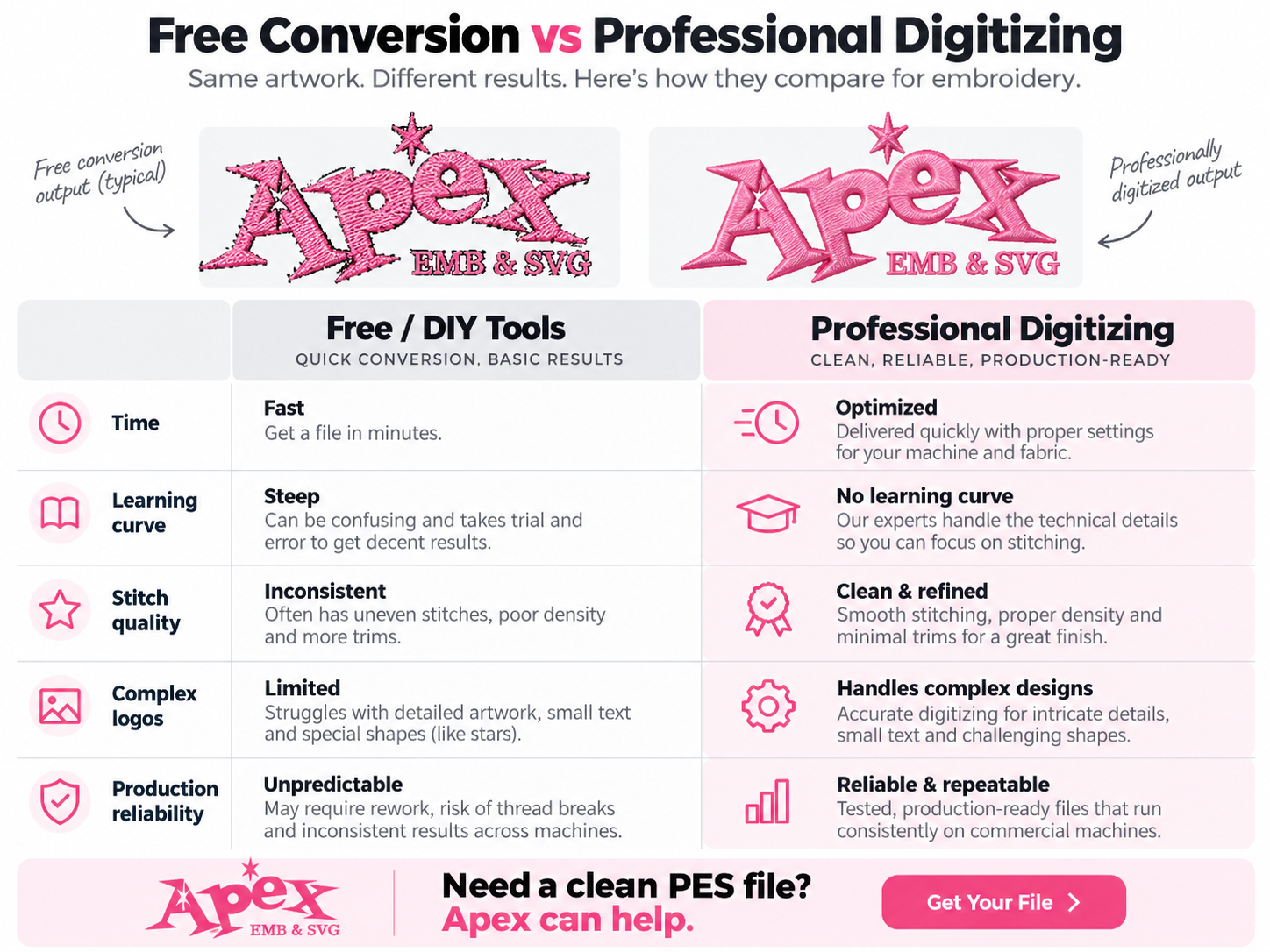
A free embroidery converter may seem like the obvious first choice, especially if you're making a single design for personal use.
However, there's a difference between generating a PES file and producing a well-constructed embroidery design that stitches consistently.
| Feature | Free or Automatic Conversion | Professional Digitizing |
|---|---|---|
| Upfront cost | Free or low-cost | Paid service |
| Learning required | Can be significant | Minimal for the customer |
| Simple shapes | Often manageable | Suitable |
| Detailed logos | May require extensive editing | Better suited to manual optimization |
| Small lettering | Can be challenging | Can be optimized within size limits |
| Fabric-specific settings | May require manual configuration | Can be tailored to the application |
| Best for | Learning and simple personal projects | Business logos and production embroidery |
If you're experimenting with basic embroidery shapes, learning Ink/Stitch can be rewarding.
But if you're preparing branded shirts for employees, hats for a sports team, or embroidered merchandise for customers, the time spent correcting poorly digitized files can quickly become frustrating.
Professional digitizing is especially valuable when consistency matters across multiple finished items.
Common Problems When Converting PNG or JPG to PES
Even after successfully creating a PES file, you may encounter problems when opening or embroidering the design.
Here are some common issues and how to troubleshoot them.
1. The PES File Won't Open on Your Embroidery Machine
If your Brother machine doesn't recognize the file, check the following:
- Confirm that your exact machine model supports the PES file version.
- Make sure the design fits within the machine's supported embroidery area.
- Check that the file is saved correctly and isn't corrupted.
- Verify that you've followed the correct file transfer procedure.
- Confirm that the file actually contains embroidery data rather than renamed image data.
PES compatibility can vary between machine models, so consult your machine's manual when necessary.
2. The Embroidery Looks Distorted or Puckered
Distortion can result from inappropriate stitch density, insufficient stabilization, fabric movement, or incorrect pull compensation.
For example, an embroidery design that stitches well on a stable cotton twill may behave differently on a lightweight stretchy T-shirt.
Use suitable stabilizer and hooping techniques, and review the design's digitizing settings for the intended material.
3. Small Letters Become Difficult to Read
Small text is one of the most challenging elements to digitize.
Letters that look sharp on a computer screen may become crowded when converted into thread, especially if the lettering contains thin strokes, tiny spaces, or complicated decorative details.
Possible solutions include:
- Increasing the final embroidery size.
- Simplifying the lettering.
- Choosing a more embroidery-friendly font.
- Adjusting stitch types and letter spacing.
- Having the text manually digitized.
For a professional-looking result, avoid assuming that every tiny detail in the original image can be reproduced exactly in stitches.
4. The Design Has Too Many Jump Stitches
Excessive jump stitches can occur when embroidery objects are sequenced inefficiently.
Review the order in which different elements are stitched. Depending on your software and machine, you may be able to reduce unnecessary travel, add appropriate trims, or reorganize the design.
5. The Thread Keeps Breaking
Thread breaks can have several causes, including needle condition, thread quality, machine tension, hooping, and overly dense stitching.
If the problem happens repeatedly in the same section of a newly digitized design, inspect that area for excessive density, short stitches, or problematic stitch paths.
How to Prepare Your Logo for PES Conversion
Whether you're digitizing a design yourself or sending it to a professional service, preparing the artwork properly can improve the workflow.
Before converting your logo, follow this checklist:
- Use the clearest image available. Avoid heavily blurred, compressed, or pixelated artwork.
- Remove unnecessary backgrounds. A transparent or plain background can make the design easier to interpret.
- Choose the final embroidery size. A 3-inch chest logo may need different digitizing decisions than a large jacket-back design.
- Simplify tiny details. Very fine lines and small lettering may not reproduce clearly with thread.
- Identify the fabric. Cotton, fleece, stretch fabrics, and caps have different embroidery requirements.
- Confirm your machine format. Verify that your machine accepts PES and check any model-specific requirements.
- Share important color details. Provide brand colors or thread preferences when color accuracy matters.
You don't necessarily need to redesign your logo before requesting digitizing. An experienced digitizer can review the artwork and determine which details may need adjustment for embroidery.
Why Professional Logo Digitizing Matters for Businesses
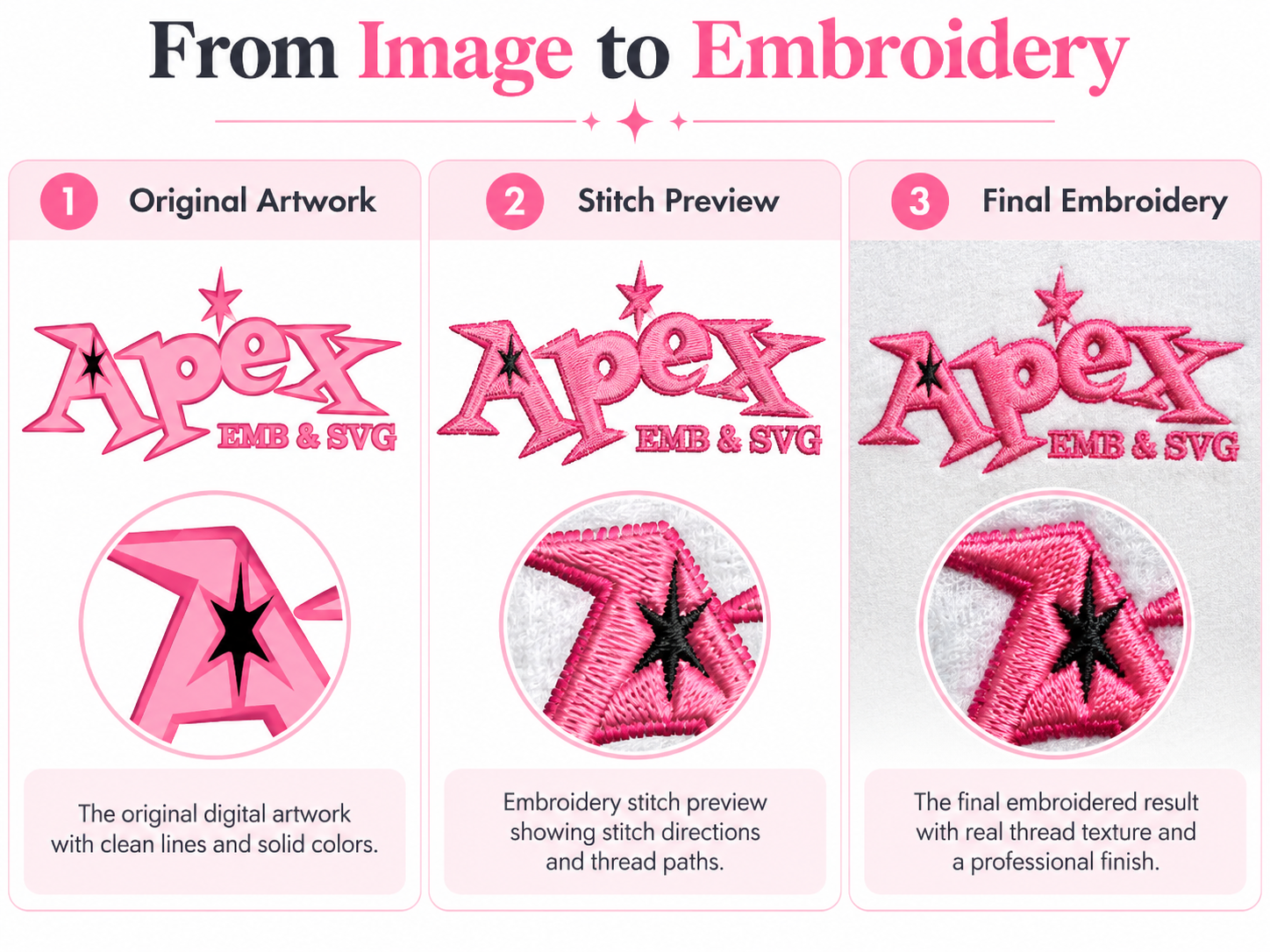
If you own an embroidery shop, apparel brand, or small business, your embroidery file becomes part of your production workflow.
A poorly digitized logo can lead to visible gaps, excessive thread buildup, difficult-to-read lettering, or inconsistent stitching across garments.
These issues become particularly costly when you're embroidering dozens of uniforms, hats, or promotional products.
Professional custom embroidery digitizing helps account for the physical limitations of embroidery, rather than treating a stitched design as a direct copy of a digital image.
At Apex Embroidery Designs, we work with customers creating embroidered products such as:
- Company uniforms and polo shirts
- Custom baseball caps
- Team and club apparel
- Embroidered patches
- Tote bags and backpacks
- Jackets and promotional merchandise
Our digitizing service supports multiple embroidery formats, including PES for compatible Brother machines and DST for many commercial embroidery workflows.
If you need your artwork prepared for embroidery, explore our custom embroidery digitizing service and upload your design.
Frequently Asked Questions About PNG, JPG, and PES Conversion
Can I convert PNG to PES for free?
Yes. Free tools such as Inkscape with the Ink/Stitch extension can be used to create PES embroidery files. However, you'll still need to prepare vector paths, assign appropriate stitch settings, and check the design before stitching. Simple artwork is generally easier for beginners than complex logos or photographs.
Can I convert JPG to PES online?
Some online embroidery conversion tools can generate PES files from JPG artwork. However, automatic conversion doesn't guarantee good stitch quality. Review the resulting stitch pattern and sew a test sample before using the file on an expensive garment or a production order.
Can I just rename a PNG or JPG file to PES?
No. Changing the file extension doesn't convert pixels into embroidery instructions. A valid PES embroidery file must contain stitch data generated through embroidery digitizing software or another suitable digitizing process.
What software can convert images to PES?
Ink/Stitch and Brother PE-DESIGN are two options for creating embroidery designs from image artwork. Ink/Stitch is free and open-source, while PE-DESIGN is commercial software. Available image conversion tools, export functions, and workflows depend on the software and version.
Does every Brother embroidery machine use PES files?
Many Brother embroidery machines support PES files, but you should check the documentation for your specific model. Supported PES versions, embroidery area sizes, and file transfer methods can vary.
How do I convert a company logo to PES?
Start with a clear PNG, JPG, or vector version of your logo. Use embroidery digitizing software to create suitable stitch paths, set the correct dimensions, and export a PES file. Alternatively, send your logo to a professional embroidery digitizing service for conversion.
How much does it cost to convert a logo to PES?
Pricing depends on the digitizing provider, design size, complexity, and service requirements. At Apex Embroidery Designs, custom embroidery digitizing currently starts at $18.99 for designs up to 4 inches. Visit our service page for current size-based pricing and order options.
Can I convert a photograph into a PES embroidery file?
Yes, but photographs are more complicated than simple logos. Detailed shading, gradients, and subtle color changes require specialized digitizing techniques. The finished embroidery won't reproduce a photograph pixel for pixel, so some artistic interpretation and simplification may be necessary.
Is PES the same as DST?
No. PES and DST are different machine embroidery formats. PES is commonly associated with Brother and compatible Baby Lock machines, while DST is widely used in commercial embroidery. Both contain stitch data, but their format capabilities and compatibility differ.
Final Thoughts: Turn Your PNG or JPG into a Stitch-Ready PES File
Converting PNG or JPG to PES is absolutely possible, whether you're creating a simple personal embroidery project or preparing a business logo for professional production.
If you enjoy learning embroidery software, free tools such as Ink/Stitch offer a way to create your own PES files. Brother PE-DESIGN is another option for users who prefer dedicated embroidery software.
For detailed logos, lettering, and commercial projects, professional digitizing can save time and help produce more reliable stitching results.
At Apex Embroidery Designs, we bring over 25 years of experience to custom embroidery digitizing, helping customers transform their artwork into machine-ready files for their embroidery projects.
Have a PNG, JPG, or logo you'd like to embroider?
Get Professional PES Digitizing from Apex Embroidery Designs →