


Why Your Embroidery Logo Stitches Poorly (And How to Fix the File)

You finally have your logo ready for embroidery. It looks sharp on your computer screen, the colors are perfect, and you've loaded the design into your embroidery machine. But when the machine finishes stitching, something isn't right.
The lettering looks uneven. The fabric puckers around the edges. Parts of the logo overlap, while other areas have noticeable gaps. Maybe the thread keeps breaking in exactly the same place.
Sound familiar?
Poor embroidery logo stitching is often caused by problems with stitch density, underlay, pull compensation, stitch sequencing, or incorrect digitizing for the fabric. However, machine tension, hooping, needles, and stabilizers can produce similar symptoms.
The good news is that many of these problems can be corrected once you identify the actual cause.
In this guide, we'll explain eight common reasons embroidery logos stitch poorly, how to troubleshoot your machine and embroidery file, and when professional digitizing can save you time and wasted materials.
Why Does My Embroidered Logo Look Bad?
One of the biggest misconceptions about machine embroidery is that a good-looking logo automatically produces good embroidery.
Unfortunately, embroidery machines don't interpret images the same way a printer does.
A printer can reproduce a digital image using ink. An embroidery machine needs specific instructions telling it where to place stitches, which direction to sew, when to change colors, and how to handle different sections of the design.
Those instructions are created through a process called embroidery digitizing.
For example, you might start with a beautiful PNG or JPG logo. But your embroidery machine generally cannot stitch that image directly. It needs a compatible embroidery file, such as DST, PES, JEF, or EXP.
Even if the file opens correctly on your machine, that doesn't necessarily mean it has been digitized correctly.
A poorly prepared embroidery file may contain:
- Too many stitches packed into a small area.
- Insufficient underlay to support the design.
- Incorrect stitch directions or inefficient sequencing.
- Lettering that is too small for the chosen fabric and thread.
- Inadequate compensation for fabric movement.
- Unnecessary trims, jumps, or overlapping sections.
These problems can affect the finished result even when your embroidery machine is working properly.
8 Common Reasons Your Embroidery Logo Stitches Poorly
Before replacing your embroidery machine or changing every setting, examine how the design behaves during stitching.
Here are eight common digitizing problems and what you can do about them.
1. Stitch Density Is Too High or Too Low
Stitch density describes how closely stitches are placed together in an embroidery design.
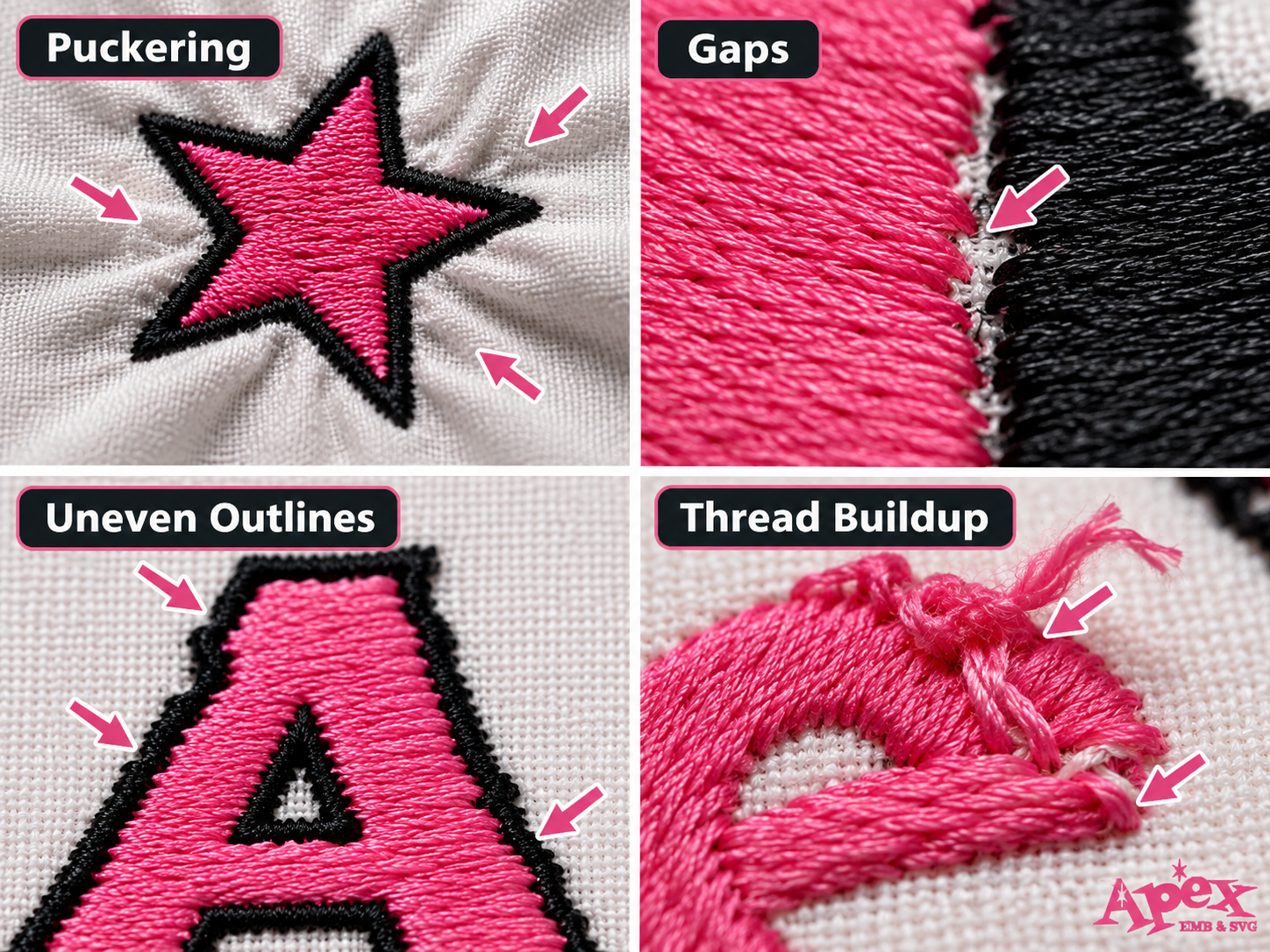
If the density is too high, the machine repeatedly pushes thread through the same small area. This can create stiff embroidery, thread buildup, puckering, and sometimes thread breaks.
If the density is too low, the fabric may show through the design, making the logo appear patchy or unfinished.
How to identify the problem:
- The embroidered area feels unusually thick or rigid.
- Thread accumulates in certain sections.
- Fabric is visible between fill stitches.
- Needle or thread problems occur in dense areas.
How to fix it: Open the design in suitable embroidery digitizing software and review the stitch density of individual objects. Adjust the spacing based on the fabric, thread, and stitch type rather than applying the same setting everywhere.
Remember that increasing stitch count doesn't automatically improve embroidery quality. Sometimes fewer, better-placed stitches produce a cleaner logo.
2. Incorrect or Missing Underlay Stitches
Underlay stitches are the foundation beneath the visible embroidery.
They help stabilize the fabric, support the top stitches, and improve coverage. Without appropriate underlay, a logo may look uneven or sink into the fabric.
This is especially noticeable on textured materials such as fleece, towels, and some knit fabrics.
Common symptoms include:
- Uneven fill areas.
- Letters that lose their shape.
- Fabric texture showing through the embroidery.
- Inconsistent coverage around edges.
How to fix it: Review the underlay type, spacing, and placement. Different embroidery objects may benefit from edge-run, center-run, or zigzag-style underlay, depending on the design and fabric.
Don't simply add more underlay everywhere. Excessive underlay can also increase bulk and create problems.
3. Missing or Incorrect Pull Compensation
Have you ever stitched a logo where the colored sections look slightly smaller than expected, leaving gaps between the fill and outline?
Pull compensation might be the issue.
During embroidery, stitches and fabric can shift under tension. Satin stitches, for example, may pull inward across their width, changing the shape of the embroidered object.
Digitizers account for this behavior by adjusting the design to compensate for expected movement.
Signs of incorrect pull compensation:
- Gaps between an outline and its fill.
- Letters that appear narrower than intended.
- Circles and rounded shapes becoming distorted.
- Color boundaries that don't align.
How to fix it: Adjust pull compensation for the affected embroidery objects and test the revised file on the actual material.
Keep in mind that similar gaps can also result from poor hooping or inadequate stabilization. Check those factors before assuming the file is responsible.
4. Poor Stitch Direction and Sequencing
The order in which an embroidery machine stitches a logo matters more than many beginners realize.
A design may contain the right number of stitches and still perform poorly if those stitches are arranged inefficiently.
For example, a machine may stitch one section, jump across the design, return to an earlier area, and then add a heavy outline over stitches that have already shifted the fabric.
This can create unnecessary movement, misalignment, and uneven coverage.
How to fix it: Review the stitch sequence in embroidery software. Look for unnecessary jumps, inefficient color changes, overlapping stitch areas, and sections that would benefit from a different sewing order.
Good sequencing helps reduce unnecessary machine movement and supports more consistent results.
5. Small Lettering and Fine Details Are Too Difficult to Stitch
Small text is one of the most common challenges in logo embroidery.
Your company logo might include a slogan, thin lettering, tiny decorative lines, or narrow spaces between characters.
These details can look perfectly readable on a screen but become difficult to reproduce using thread.
Common problems include:
- Letters closing up or merging together.
- Small holes in letters disappearing.
- Thin lines becoming inconsistent.
- Words that are no longer readable.
How to fix it: Consider simplifying extremely small details, selecting embroidery-friendly lettering, increasing the overall design size, or using digitizing techniques designed for small text.
The best solution depends on the fabric, thread, machine, and finished lettering size. There is no single minimum text size that works for every embroidery project.
If your logo has very fine typography, a professional digitizer can help determine which details can be preserved and which need adjustment.
6. The Logo Was Resized Without Proper Re-Digitizing
Imagine receiving a logo file intended for a large jacket back, then shrinking it to fit a small left-chest placement.
The embroidery software might allow you to change the dimensions, but that doesn't mean the resulting stitches will remain suitable.
When an embroidery design is resized incorrectly, stitch lengths, density, and small details may become unsuitable for the new size.
Reducing a design too much can cause excessive stitch buildup. Enlarging it can create overly long stitches or insufficient coverage.
How to fix it: Whenever possible, resize the original editable digitizing file using software that recalculates stitches appropriately.
For significant size changes, the safest approach may be to create a new digitized version specifically for the required dimensions.
This is particularly important when preparing the same business logo for caps, polos, jackets, and promotional products.
7. Auto-Digitizing Created a Poor Embroidery File
Auto-digitizing software can be useful for certain designs, but automatic conversion doesn't always produce an efficient, production-ready stitch file.
A program may recognize the visible shapes in your logo without fully accounting for how the fabric will move during embroidery.
As a result, an automatically generated file may contain:
- Unnecessary color changes and thread trims.
- Incorrect stitch angles.
- Excessive overlapping stitches.
- Unoptimized small lettering.
- Areas with poor coverage or inadequate support.
How to fix it: Inspect and edit the digitized objects manually rather than assuming that the automatic output is ready for production.
More complex logos may benefit from being professionally digitized from the original artwork.
The goal isn't simply to convert the image into stitches. It's to create stitching instructions that work well on real fabric.
8. The Embroidery File Wasn't Optimized for the Fabric
A logo that stitches beautifully on a stable woven fabric may not produce the same result on a stretchy polo shirt or textured towel.
Different materials respond differently to needle penetration, thread tension, and dense stitching.
For example:
- Polo shirts: Stretch and fabric movement can contribute to distortion or puckering.
- Caps: Curved surfaces, seams, and limited stitching areas can affect registration.
- Towels: Raised loops can interfere with small details and lettering.
- Fleece: Soft, textured surfaces may allow stitches to sink into the fabric.
- Lightweight fabrics: Heavy stitch density can create visible puckering.
How to fix it: Match the digitizing settings, stabilization, and embroidery technique to the material.
For example, a towel design may require suitable underlay and a water-soluble topping, while a stretchy garment may need different stabilization and stitch adjustments.
Always communicate the intended fabric and finished design size when requesting a custom embroidery file.
How to Tell Whether the Problem Is Your Embroidery File or Machine
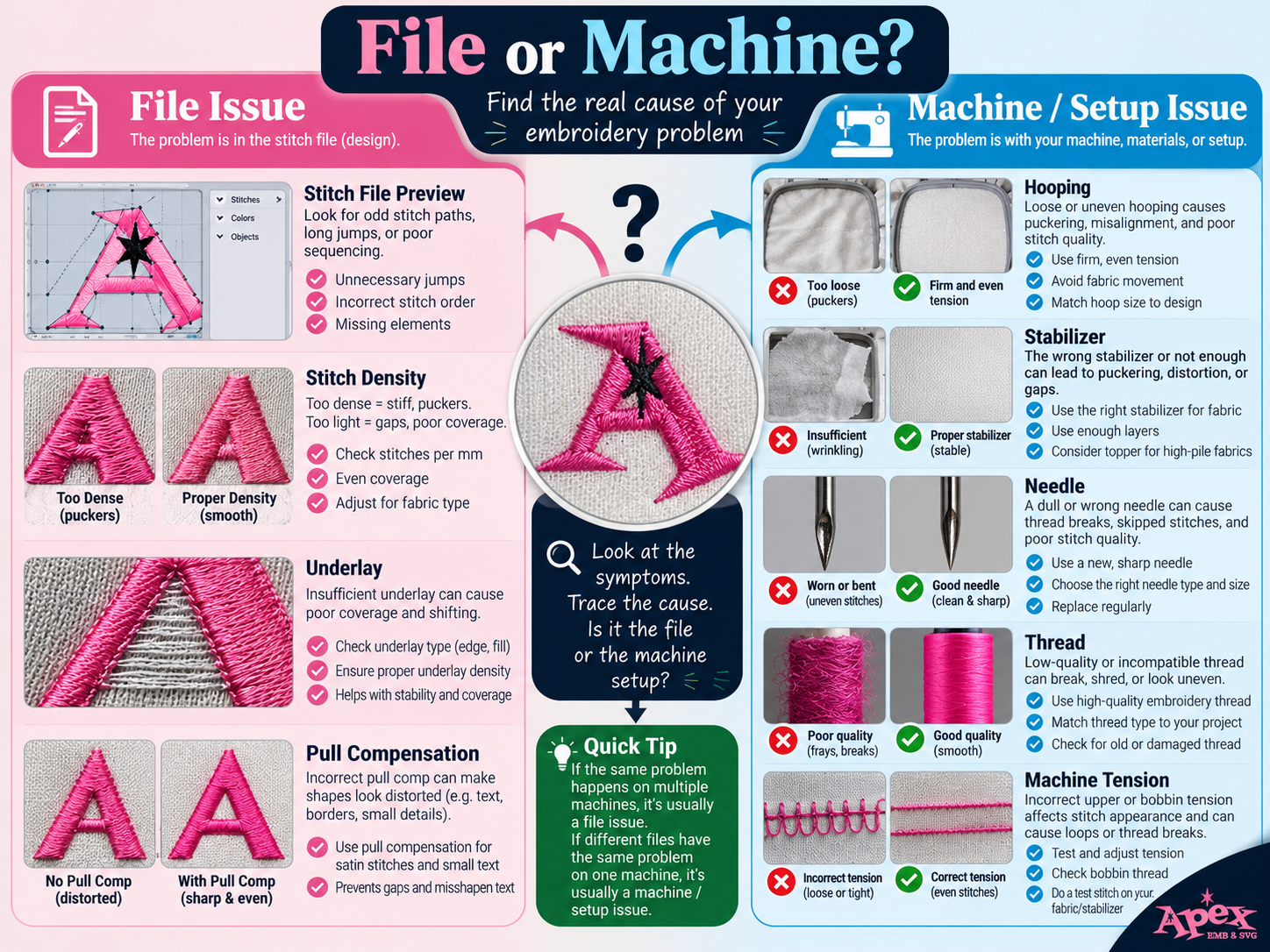
Not every embroidery problem requires a new design file.
Even a properly digitized logo can stitch poorly if the machine isn't threaded correctly, the needle is damaged, the fabric moves in the hoop, or the stabilizer is unsuitable.
Before paying to have a logo re-digitized, try a controlled test.
- Check that your needle type and size are appropriate for the fabric and thread.
- Confirm that your machine is threaded correctly and the tension is suitable.
- Use the correct stabilizer and hoop the material securely without overstretching it.
- Stitch a known, reliable test design on similar material.
- Stitch your logo again and observe where the problem occurs.
If a known-good design stitches correctly but your logo repeatedly fails in the same area, that pattern may indicate a problem in the logo file.
If different designs fail unpredictably, review the machine, materials, and setup first.
Embroidery Logo Troubleshooting Chart
| Problem | Possible Cause | Recommended Fix |
|---|---|---|
| Fabric puckering | Excessive density or poor stabilization | Check stabilizer, hooping, and stitch density |
| Gaps between colors | Pull compensation or registration issues | Review compensation, overlap, and fabric movement |
| Unreadable lettering | Text too small or unsuitable stitching | Resize or re-digitize the lettering |
| Frequent thread breaks | Threading problems, needle issues, or dense stitches | Inspect the setup and affected stitch area |
| Uneven outlines | Fabric movement or poor sequencing | Improve stabilization and review stitching order |
| Stitches sinking into fabric | Insufficient support on textured material | Adjust underlay and consider suitable topping |
| Stiff embroidered logo | Excessive stitch buildup | Optimize density and overlapping objects |
| Distorted cap logo | Curved surface, sequencing, or stabilization problems | Use cap-appropriate digitizing and setup |
Tip: Keep a sample of the failed embroidery and take close-up photos. If you need professional help, these examples can make it easier to explain the problem.
How to Fix an Embroidery Logo File Step by Step
Once you've ruled out obvious machine and setup issues, it's time to inspect the embroidery file.
Here is a practical workflow for improving a poorly stitched logo.
Step 1: Inspect the Original Logo Artwork
Start with the original PNG, JPG, SVG, or other artwork used to create the design.
Check whether the logo contains extremely small text, thin lines, intricate shapes, or gradients that may be difficult to reproduce with embroidery thread.
In some cases, simplifying the artwork slightly creates a much better stitched result while preserving the overall visual identity.
Step 2: Verify the File Format and Design Size
Confirm that the embroidery file is compatible with your machine.
Common machine embroidery formats include:
- DST: Commonly used by commercial embroidery systems.
- PES: Commonly associated with Brother and Baby Lock machines.
- JEF: Used by many Janome embroidery machines.
- EXP: Used by certain commercial and home embroidery systems.
Check the actual stitch dimensions and ensure that the design fits your embroidery hoop.
Be aware that converting one stitch file format into another does not automatically improve the underlying digitizing quality.
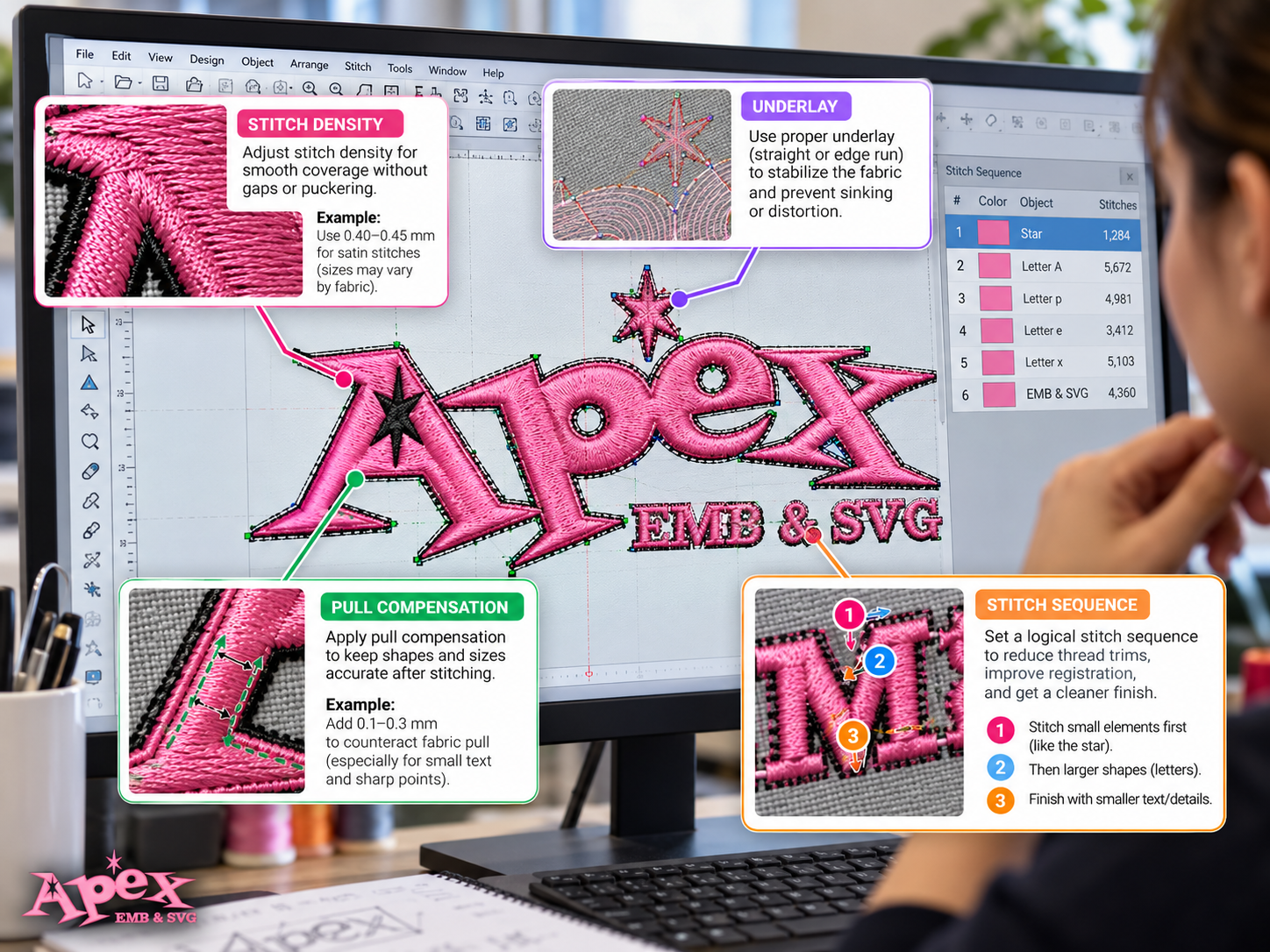
Step 3: Review Stitch Density and Underlay
Open the design in embroidery digitizing software that supports the necessary editing functions.
Inspect areas with excessive overlapping stitches, inconsistent coverage, or missing support stitches.
Adjust density and underlay according to the object type and intended material.
For example, a small satin-stitched letter may require different settings from a large filled background shape.
Step 4: Correct Pull Compensation and Stitch Sequence
Review the areas where outlines and filled shapes meet.
If you see consistent gaps or distortion, inspect the compensation settings and stitching order.
Look for unnecessary back-and-forth machine movement, excessive color changes, and areas where previously stitched sections may influence later stitches.
Make targeted changes instead of adjusting every object at once.
Step 5: Run a Test Stitch-Out
Before stitching the revised design on a finished garment, test it on comparable material.
Try to match the actual production conditions, including:
- Fabric type.
- Stabilizer.
- Thread and needle.
- Finished design size.
- Machine and hooping method.
Inspect the completed sample for gaps, puckering, alignment, lettering clarity, and thread buildup.
If necessary, adjust the file and repeat the test.
Remember that some exported embroidery files contain primarily stitch instructions rather than editable design objects. More advanced changes may require the original native digitizing project or rebuilding the design.
Can You Fix a Bad DST or PES File Without Starting Over?
Sometimes you can. Sometimes rebuilding the file is the better option.
It depends on what is wrong with the design and which files you have available.
For example, if the problem involves a minor placement adjustment or limited stitch editing, compatible embroidery software may allow you to correct it.
However, if the design contains excessive automatic stitching, incorrect underlay, poor lettering, or fundamentally unsuitable stitch paths, rebuilding the design from the original artwork may produce a better result.
This is particularly important when the only available file is an exported DST or PES file rather than the original editable digitizing project.
You should also remember that changing the file extension is not the same as correcting the embroidery design.
Converting a poorly digitized DST file to PES will not automatically fix its stitch density, sequencing, or pull compensation.
For commercial logo embroidery, creating a properly optimized file is often more valuable than repeatedly modifying a problematic export.
When Should You Hire a Professional Embroidery Digitizing Service?
Not every embroidery issue needs professional help. Sometimes changing your stabilizer or replacing a needle is enough.
However, professional digitizing can be worth considering when:
- Your logo repeatedly stitches poorly despite correct machine setup.
- You need sharp, readable lettering at a small size.
- The file contains excessive stitches or complicated overlaps.
- You need the same logo prepared for different garments or placements.
- You only have the original logo artwork and no embroidery file.
- You are preparing branded apparel for customers or business orders.
- You need a file that works with a specific embroidery machine format.
If you're spending hours trying to correct a poorly prepared design, professionally digitizing the artwork may be a more practical solution.
Custom Embroidery Digitizing at Apex Embroidery Designs
With over 25 years of embroidery digitizing experience, Apex Embroidery Designs helps businesses, embroidery shops, sports teams, and individual creators turn their artwork into machine embroidery files.
Our custom embroidery digitizing service supports logos and artwork intended for products such as:
- Embroidered hats and caps.
- Business polo shirts and uniforms.
- Jackets and promotional apparel.
- Tote bags and accessories.
- Patches and other personalized items.
We offer file formats including DST, PES, JEF, EXP, and several others, with a typical turnaround of 1–2 days.
When submitting your artwork, you can specify your intended design size, fabric type, number of colors, and preferred embroidery file format.
Providing these details helps us prepare a design suited to your project rather than simply converting an image into a generic stitch file.
How to Prevent Poor Embroidery Logo Stitching in Future Projects
The easiest embroidery problem to fix is the one you prevent before production begins.
Whether you're running a commercial embroidery shop or stitching a logo at home, a few simple habits can help you avoid disappointing results.
- Use high-quality artwork: Provide a clear original logo whenever possible.
- Specify the final embroidery size: Don't assume one file will work equally well at every dimension.
- Identify the fabric: Let your digitizer know whether you're using cotton, fleece, knit, denim, or another material.
- Choose appropriate stabilization: Match the stabilizer and hooping technique to the garment.
- Test before bulk production: Always stitch a sample before embroidering a large order.
- Save approved files: Keep organized copies of files that have been successfully tested for specific garments and sizes.
For businesses producing branded uniforms or merchandise, these steps can reduce wasted materials, unnecessary machine downtime, and inconsistent embroidery results.
Frequently Asked Questions About Embroidery Logo Problems
Why does my embroidered logo look blurry?
A blurry-looking embroidered logo may be caused by excessive stitch density, small lettering, fabric movement, or poor digitizing. When stitches overlap too heavily or fine details are too small, the finished design can lose definition. Check stabilization and the stitch file before making major changes.
Why are my embroidery stitches not lining up?
Misaligned stitches can result from fabric movement, insufficient stabilization, incorrect pull compensation, or poor stitch sequencing. If the misalignment repeatedly occurs in the same section, inspect that part of the file. If the problem varies, review your hooping and machine setup.
Can you fix a poorly digitized DST file?
Some DST files can be edited using compatible embroidery software. However, DST files generally do not retain all the editable object information found in native digitizing projects. When the underlying stitch structure is severely flawed, re-digitizing from the original artwork may be more effective.
Why does my logo look good in software but bad on fabric?
Embroidery software provides a digital preview, but it cannot perfectly reproduce every physical interaction between thread, needle, fabric, and stabilizer. A design may look correct in a simulation while producing puckering, gaps, or distortion during actual stitching. That's why a real test stitch-out is important.
Does converting PNG to PES automatically fix embroidery quality?
No. Converting PNG artwork into a PES embroidery file requires digitizing, which determines how the machine will stitch the design. An automatic conversion may produce usable results for simple artwork, but it doesn't guarantee correct density, underlay, lettering, or sequencing.
Should I re-digitize my logo if I change its size?
Not always. Small size adjustments may be possible with suitable embroidery software, especially when the original editable file is available. However, significant resizing can affect stitch length, density, and fine details. A separately optimized version is often preferable when the same logo is used at very different sizes.
Final Thoughts: Better Embroidery Starts with the Right File
If your embroidery logo stitches poorly, don't assume your machine is broken or that you need to replace all your materials.
Start by checking the basics: needle, thread, stabilizer, hooping, and fabric. Then examine the embroidery file for density problems, incorrect underlay, poor sequencing, and details that may need to be re-digitized.
A well-prepared embroidery file can make a meaningful difference in stitch quality, production consistency, and the appearance of your finished logo.
Need help turning your logo into a properly digitized embroidery design?
At Apex Embroidery Designs, we help transform artwork into machine-ready embroidery files for a wide range of garments and creative projects.